
Buiiild features
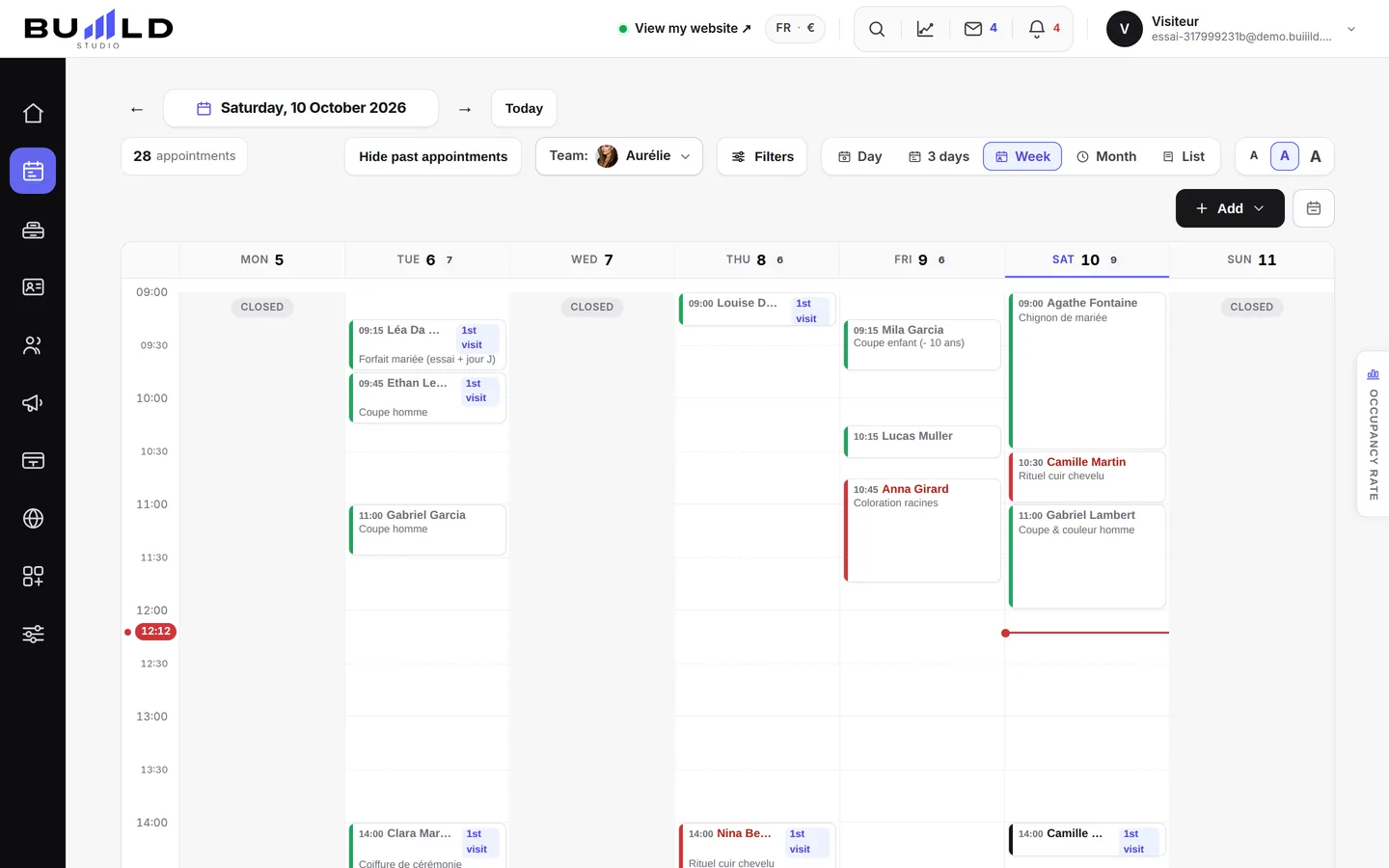
Team calendar Your whole team at a glance.
Day, three-day, week, month and list views: every team member has a column, every appointment its colour. The booking form only offers slots that are genuinely free, and the team schedule — working hours, time off — applies to the calendar and to online booking automatically.
On video · 4 min 3 s
Finding your way around the calendar
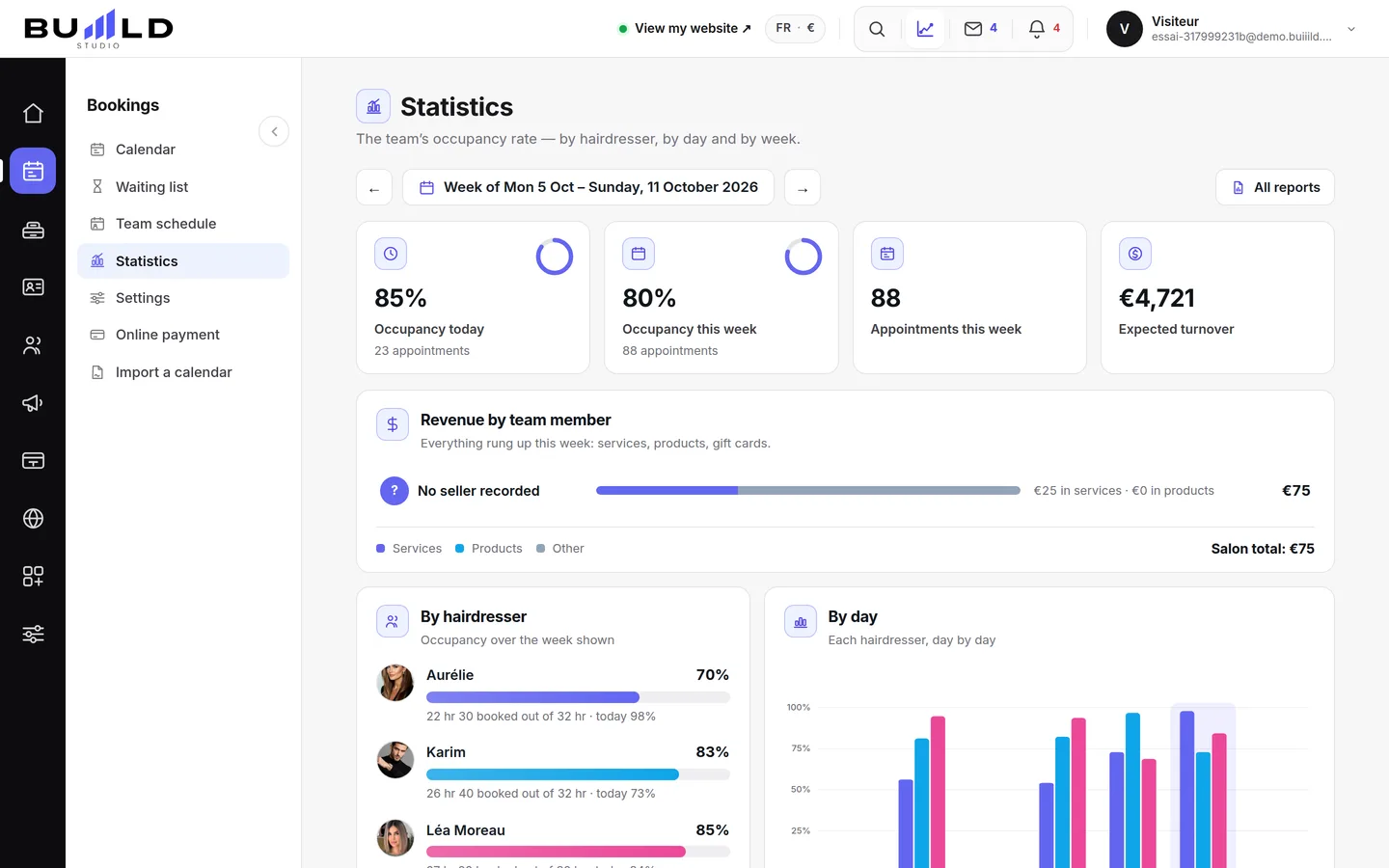
The Day, 3-day, Week, Month and List views, the day's figures, the filters, the card colours and the occupancy tab.
Step by step
Every screen, explained
The help centre guides that cover this feature in detail, with screenshots.
 Creating an appointmentService, stylist, day, slot, client: the form only offers truly free slots, and creates the client record if needed.Read the guide
 Managing an appointment: confirm, mark kept, move, cancelThe appointment record, the seven statuses, drag and drop, the session notes and what the client receives when you move it.Read the guide
 The team's schedule: hours and time offWho works when: each stylist's hours, up to two slots a day, and their time off. The calendar and online booking adapt on their own.Read the guide
 Blocking a slot: break, meeting, time offReserve a time when no one can book an appointment: a break, a meeting, a half-day, for the stylist concerned, once or every week.Read the guide
 The waiting list: notify as soon as a spot opens upYour clients who want to be notified if a slot frees up: sign-up from the site or by phone, automatic alert on cancellation, results.Read the guide
Frequently asked questions
I only see one stylist in the calendar
Check the "Team" choice in the top bar: it may be set to a single chair. Set it back to "All".
A day is greyed out in the day strip
The salon is closed that day, according to your hours (My site › Hours). Exceptional closures are set in the same place.
The calendar shows shifted times
The calendar follows your salon's time zone, set in Settings › Contact details. If the times look shifted, this setting is usually what to check.
The slot I want doesn't appear
It isn't free: another appointment, a blocked slot, or the stylist isn't working at that time (check their schedule). Also check the slot interval in the booking settings.
I can no longer edit the services on an appointment
The appointment is closed (kept, absent or cancelled): its services can no longer be changed. Create a new one if needed.
A stylist only works on Saturdays
Untick "Follows the salon's hours", then only tick Saturday with its slots. On the other days, their column will be hatched and nothing will be offered online.
Make room for what is next
Your next chapter bears your salon’s name.
Create your website. Discover your Studio. You have 30 days to decide for yourself.
Create my salon