Managing an appointment: confirm, mark kept, move, cancel
The appointment record, the seven statuses, drag and drop, the session notes and what the client receives when you move it.
In this article
Everything that happens to an appointment takes place in its record: click a card in the calendar to open it in the right-hand panel.
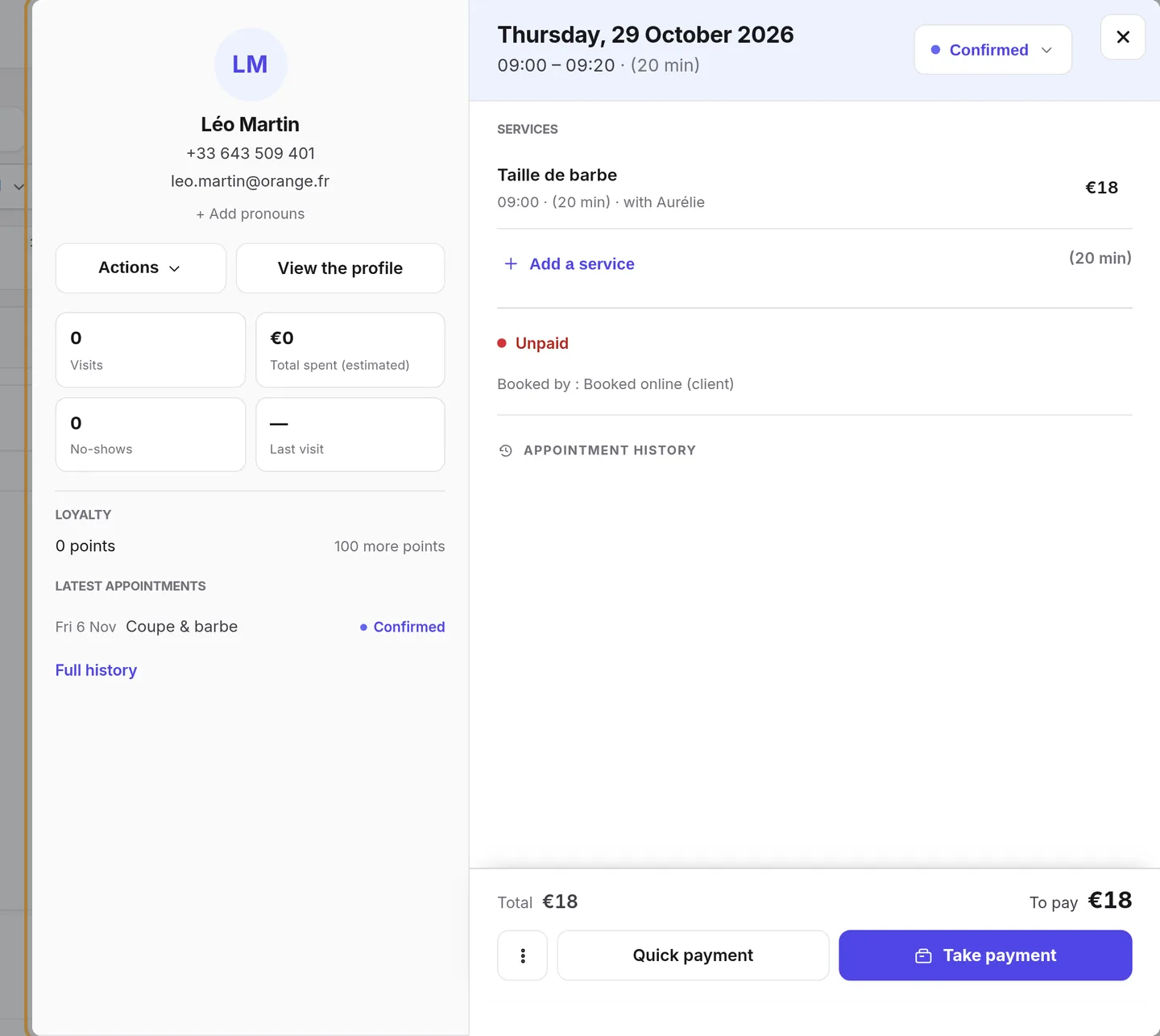
What the record shows
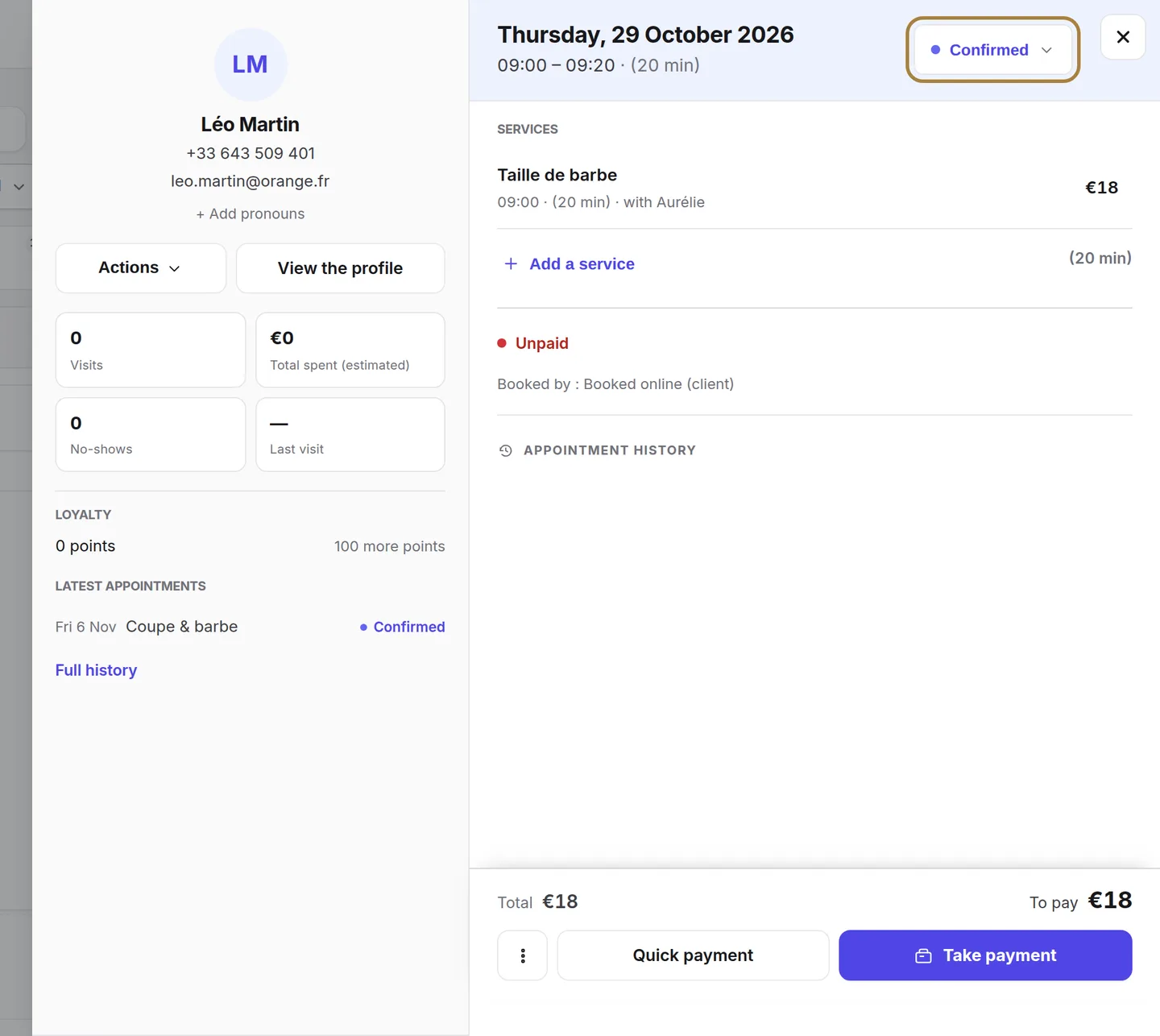
- The status and the buttons to change it.
- The appointment's services, with the stylist for each; you can add or remove them as long as the appointment isn't closed.
- The client: last visit, total spent, 1st visit badge if it's their first time, their loyalty status, and a link to their full profile. If the appointment isn't linked to any record, a button offers to create one.
- Payment: paid, partial or unpaid, and the Take payment button that opens the till with the basket already built.
- The forms to have signed (waivers, consents), sent to the client record's address.
- The appointment's history: who created it, confirmed it, moved it, and when.
- Under Other actions: add a note, send a form, set up as recurring, enter the session notes, book again.
The statuses
| Status | What it means | Who sets it |
|---|---|---|
| To confirm | Request received online, awaiting your agreement. | The client, when booking. |
| Confirmed | The appointment is set. | You — or automatically, depending on your settings. |
| Arrived | The client is here, in the waiting area. | You, at reception. |
| Started | The service has begun. | You, at the chair. |
| Kept | The client came and the service was done. | You — or automatically, two hours after it ends. |
| Absent | The client didn't come. | You. |
| Cancelled | The appointment won't happen. | You, or the client online within the allowed window. |
Switching to Kept matters: it's what triggers the thank-you message and the review request, and feeds your realised revenue. You can let it happen on its own (Booking settings › switching to kept) or tick it yourself.
Moving an appointment
Two actions, directly in the calendar:
- Drag the card to another time or another column: the card follows the mouse or your finger, and the calendar shows "With {stylist}" or "To {day}". Hold to change day, drop on a day in the strip to change the date. Escape cancels.
- Pull the handle at the bottom of the card to change the duration.
If the move isn't possible (overlap, stylist absent), the card returns to its place and the calendar says why. You can also go through the record: Move to… offers the free slots.
Editing or cancelling
From the record: add or remove a service (an appointment always keeps at least one service; an added service can't run into the next appointment), change the stylist on a line, add a note. To cancel, change the status to Cancelled: the card gets struck through but stays visible, and the cancellation is logged in the history.
Noting what was done
On a kept appointment, Session notes appears in the record: note the formula applied, its processing time, the result, and a before/after photo. The client's record always shows the latest one, dated and signed, without you having to copy it out — next time, the formula is right there.
Frequently asked questions
I can no longer edit the services on an appointment
The appointment is closed (kept, absent or cancelled): its services can no longer be changed. Create a new one if needed.
How do I make an appointment recurring?
Other actions › Set up as recurring: choose the frequency, the calendar creates the series. Each occurrence can still be edited separately.
The client paid a deposit, how do I see it?
The deposit status is shown on the card and in the record ("paid", "pending"). At payment, the deposit is automatically deducted from the basket.
Go further
Service, stylist, day, slot, client: the form only offers truly free slots, and creates the client record if needed.
Calendar and appointmentsFinding your way around the calendarThe Day, 3-day, Week, Month and List views, the day's figures, the filters, the card colours and the occupancy tab.
Calendar and appointmentsBooking settings: slots, delays, deposit, cancellationThe slot interval, the buffer, the notice period, the horizon, automatic switching to kept, the deposit, the cancellation policy and notifying of moves.
Need a hand?
Write to us from your studio, under “Help & support”: we answer quickly, with real people.