Creating an appointment
Service, stylist, day, slot, client: the form only offers truly free slots, and creates the client record if needed.
In this article
An appointment is created in five choices, from the calendar. The form will never let you create an overlap: it only offers slots that are genuinely free.
Opening the form
Two ways:
- Click Add at the top right of the calendar, then Appointment.
- Or click directly on an empty slot in the calendar: the form opens already set to that day, that time and that stylist.
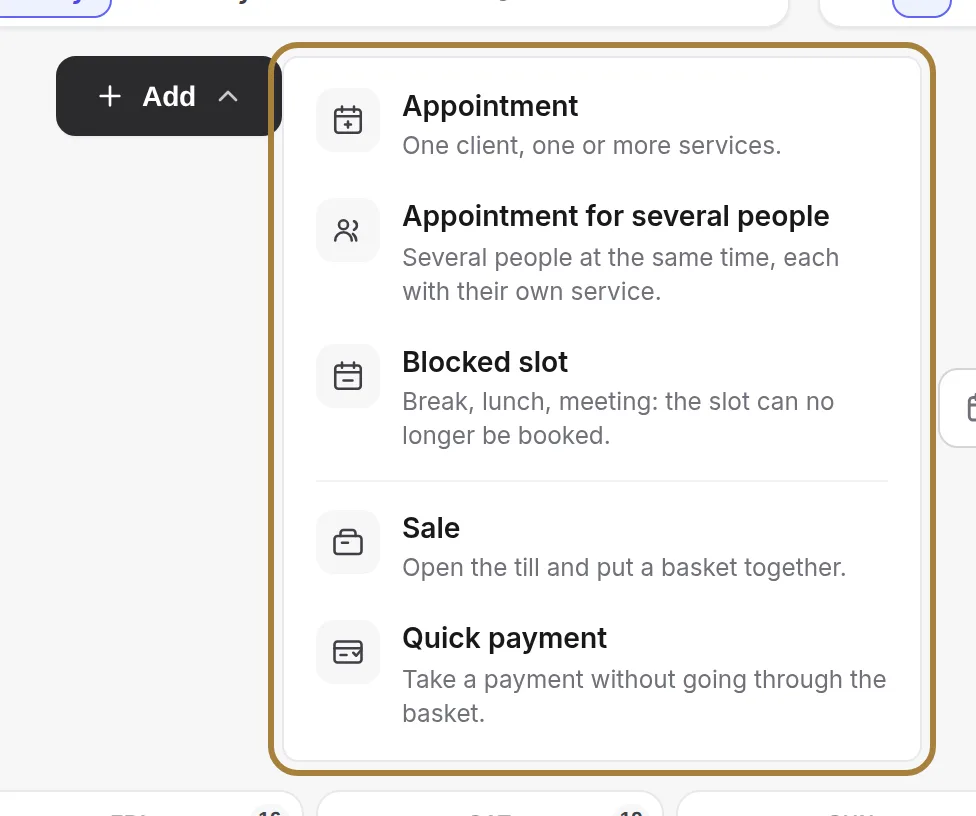
The Add menu also offers an appointment for several people (several clients at the same time, each with their own service), a blocked slot (break, lunch, meeting: the slot is no longer bookable), a sale and a quick payment, which open the till.
The five choices
- The service. Choose it from the list: the duration and price calculate themselves. Add a service lets you chain several into the same appointment.

1. The service: the duration and price calculate themselves. - The stylist. A specific chair, or No preference: the system then assigns the least busy stylist.

2. The stylist: a specific chair, or "No preference". - The day. The calendar is already set to the day shown. Greyed-out days are closed or full.
- The slot. Only genuinely free slots are offered — no overlap can be created. The slot interval (15 min, 30 min…) and the gap between two appointments are set in Booking settings.
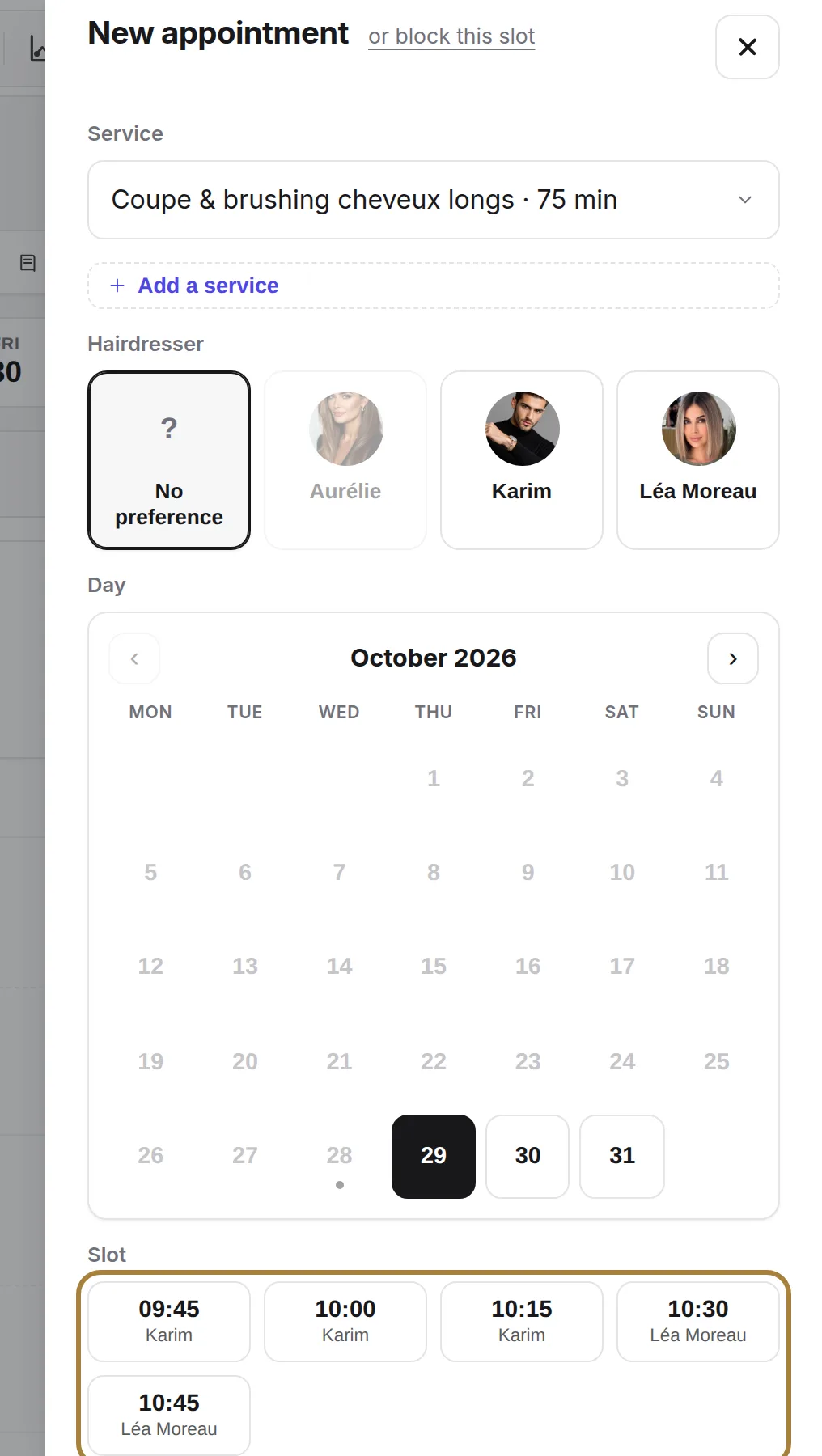
3 and 4. The day and the slot: only free slots are offered. - The client. Type a name: existing records suggest themselves. A new name? Their client record will be created automatically with the appointment.
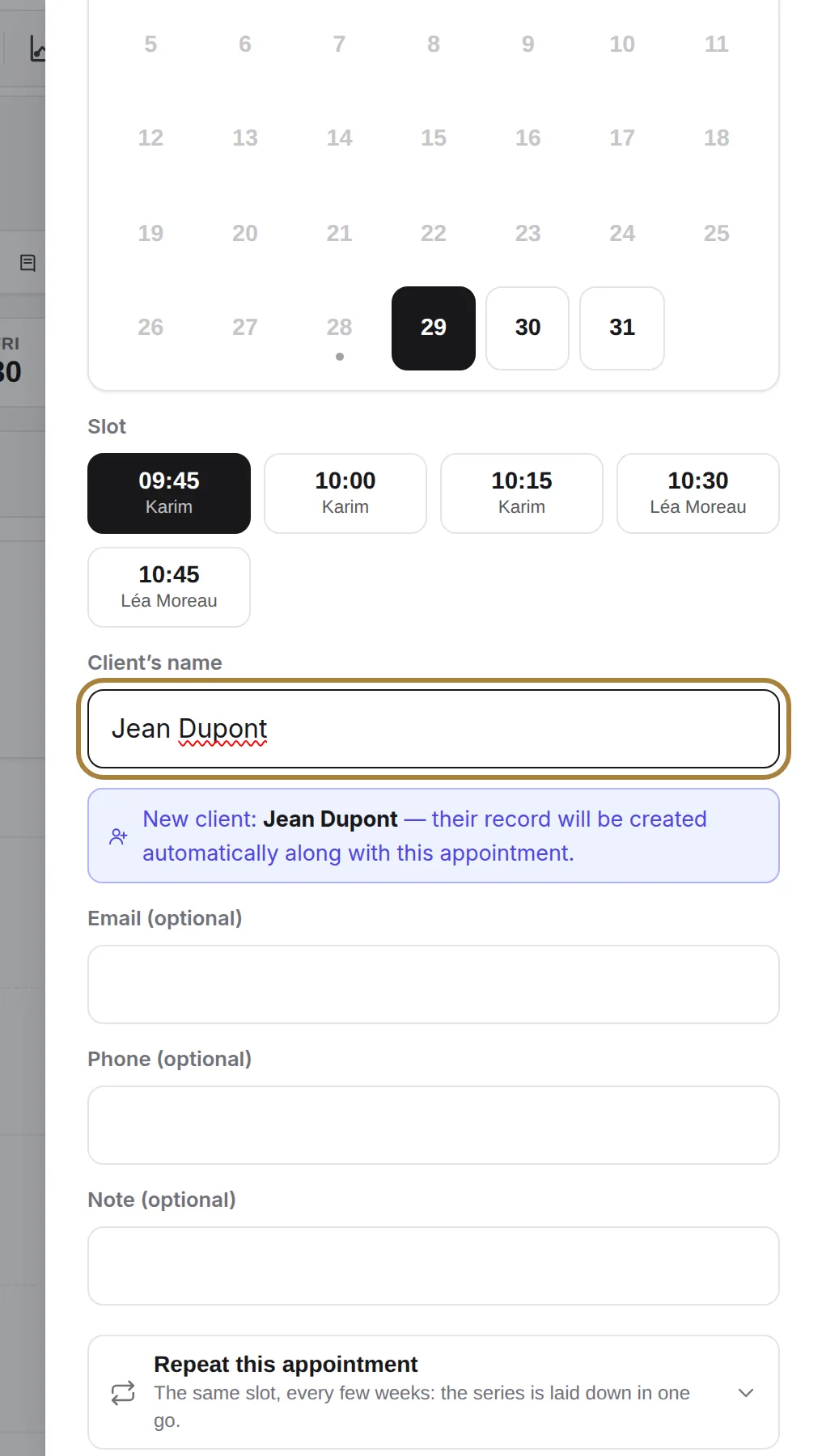
5. The client: existing records suggest themselves.
Click Save: the card appears in the calendar, with Confirmed status since you're the one who created it.
Frequently asked questions
The slot I want doesn't appear
It isn't free: another appointment, a blocked slot, or the stylist isn't working at that time (check their schedule). Also check the slot interval in the booking settings.
Can I put two services in the same appointment?
Yes: Add a service in the form. The total duration and price add up, and the slot offered takes the whole thing into account.
The client doesn't have a record yet
Just type their name: the record is created with the appointment. You can fill in phone and email later from Clients.
How do I block a slot with no client?
Add › Blocked slot: choose the stylist, the range and a reason. The slot disappears from online booking.
Go further
The Day, 3-day, Week, Month and List views, the day's figures, the filters, the card colours and the occupancy tab.
Calendar and appointmentsManaging an appointment: confirm, mark kept, move, cancelThe appointment record, the seven statuses, drag and drop, the session notes and what the client receives when you move it.
Calendar and appointmentsThe waiting list: notify as soon as a spot opens upYour clients who want to be notified if a slot frees up: sign-up from the site or by phone, automatic alert on cancellation, results.
Need a hand?
Write to us from your studio, under “Help & support”: we answer quickly, with real people.