Finding your way around the calendar
The Day, 3-day, Week, Month and List views, the day's figures, the filters, the card colours and the occupancy tab.
In this article
The calendar is the screen you open most often: it shows the salon's day, one column per stylist, and everything to do with an appointment happens there without changing page.

The top bar

- Navigating the days: the arrows change the day, the pill shows the date, and Today brings you straight back to the current day.
- The day's figures: active appointments, expected revenue and requests to confirm. Tap "to confirm": the full list of requests opens, each ready to confirm.
- Choosing the stylist: the whole salon, or a single chair. In Week view, this choice decides which stylist is shown.
- The views: Day, 3 days, Week, Month and List.
The five views
| View | What it shows | When to use it |
|---|---|---|
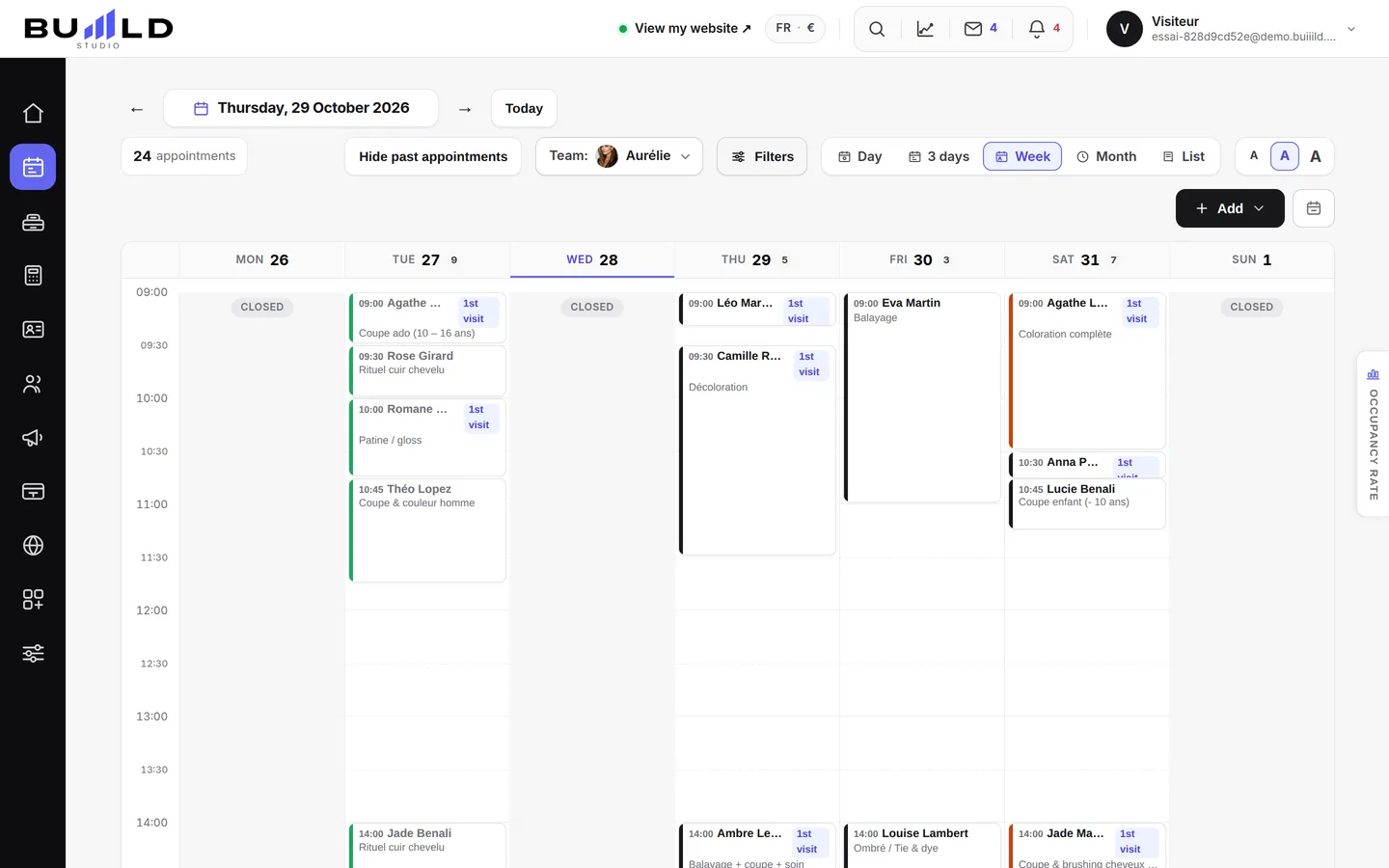
| Day | Every column in the salon over one day, hour by hour. | At the desk, all day long. |
| 3 days | Three days side by side. | To fit in an appointment "in the next few days". |
| Week | One stylist's whole week. Click a day header to reopen that day in full. | To see a team member's gaps. |
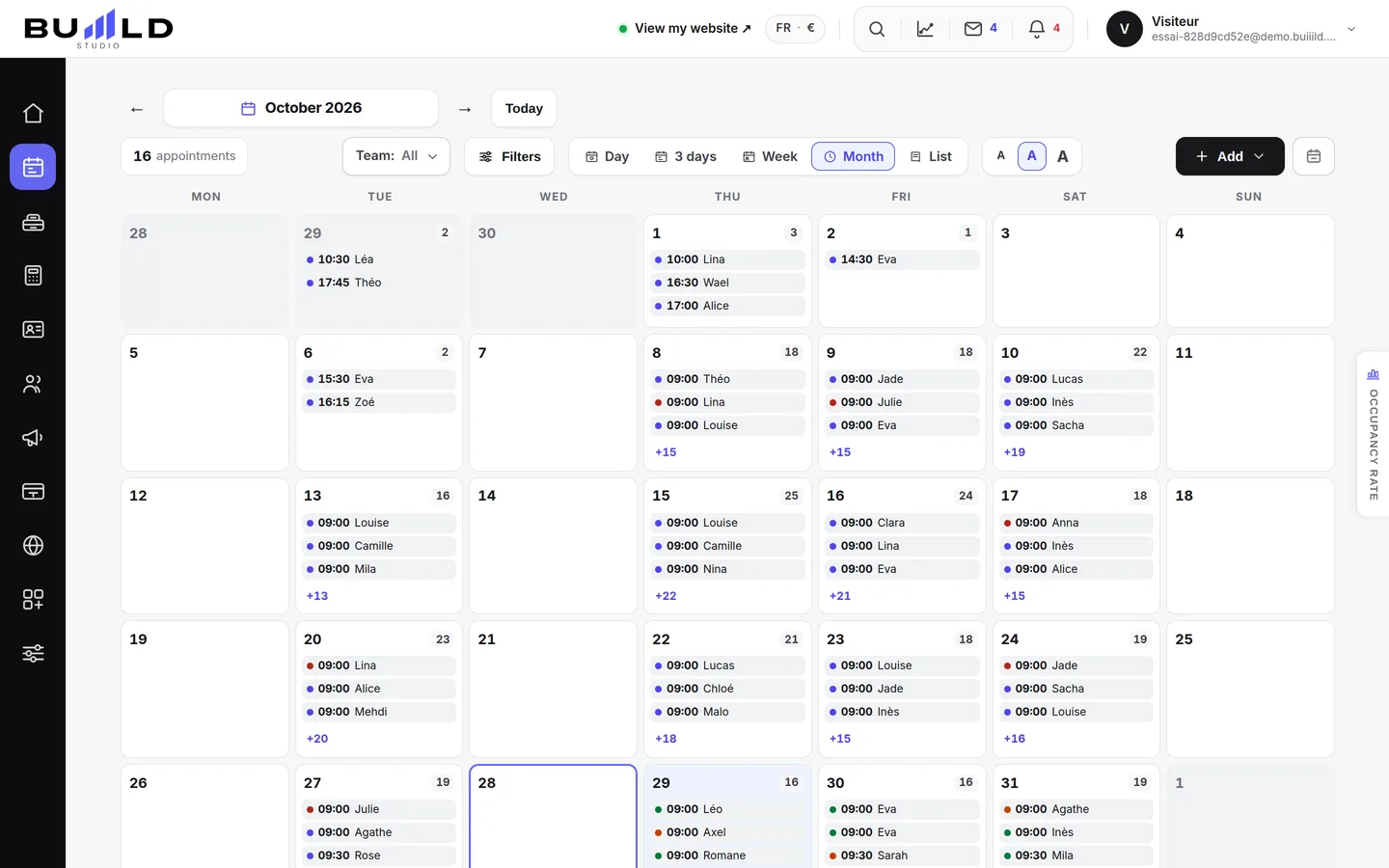
| Month | Each day's workload for the month. | To plan a schedule or time off. |
| List | Appointments one below the other. | On a phone, or to call tomorrow's clients. |
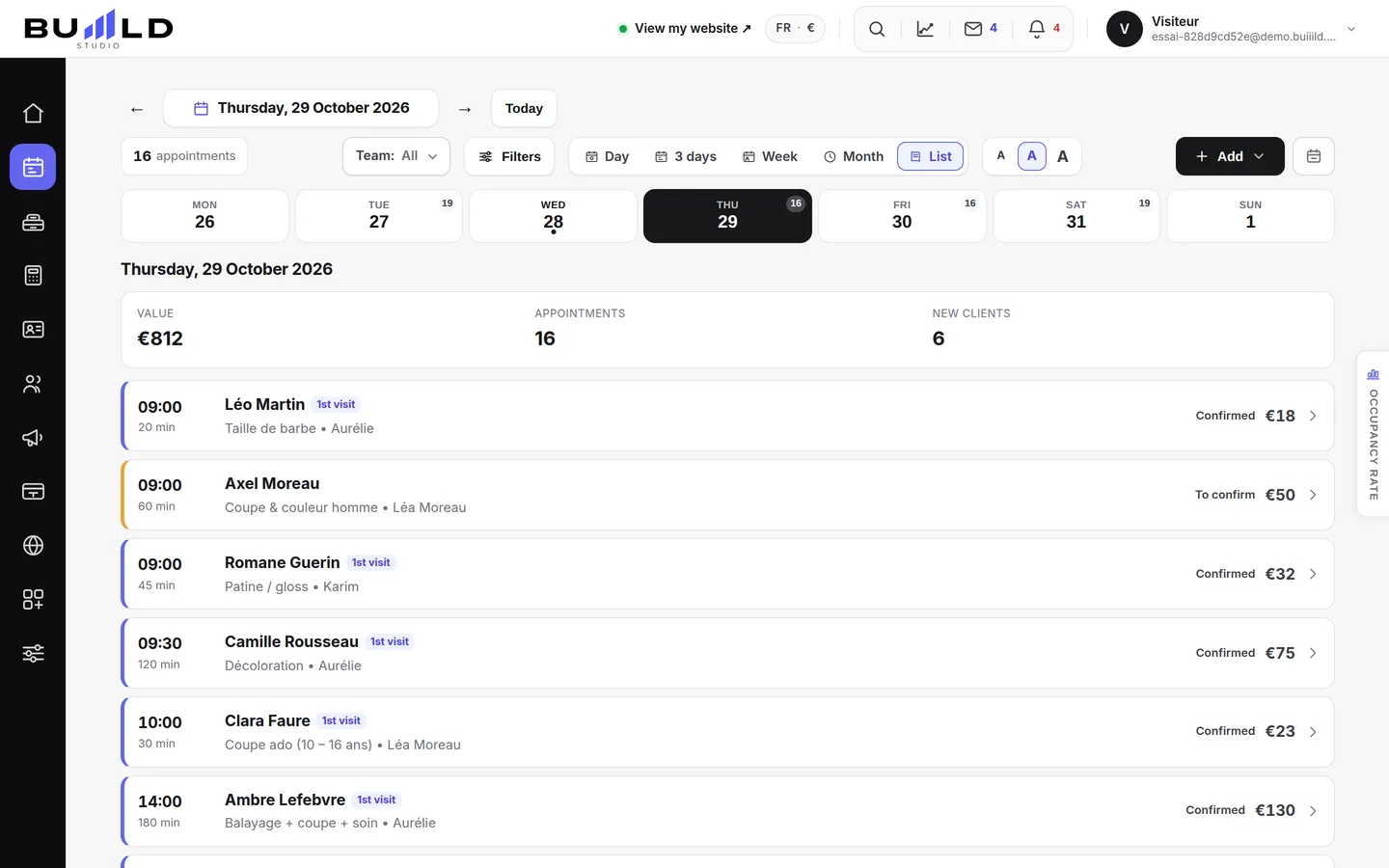
The day strip, under the bar, shows the current week: the badge shows the number of appointments for each day. Click a day to open it.
Filtering
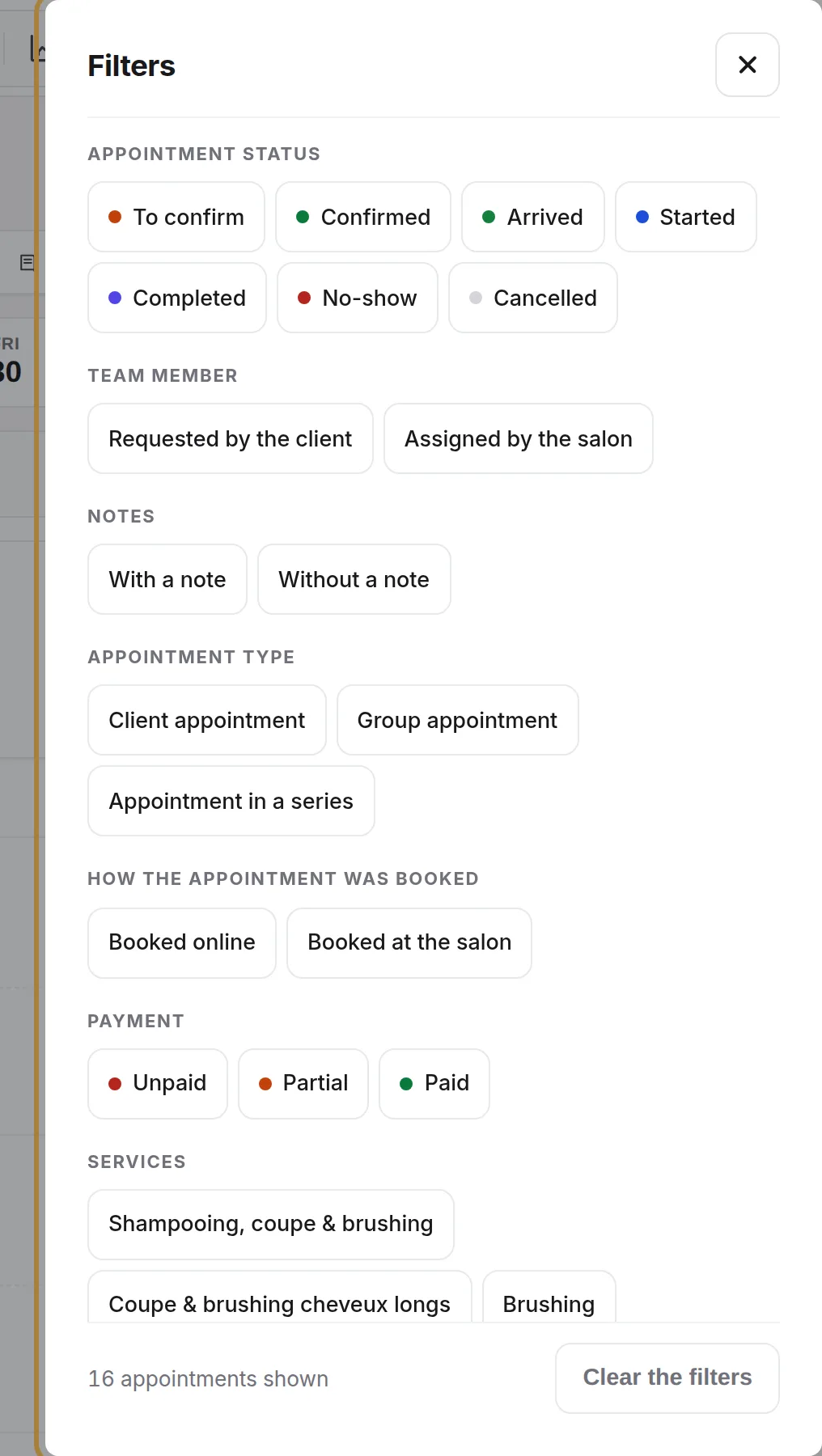
The Filters button narrows down what you see: appointment status, payment (paid, partial, unpaid), appointments booked online or at the salon, services, stylist requested by the client or assigned by the salon, group or recurring appointments, with or without a note. The counter on the button reminds you how many filters are active; Clear the filters resets everything.
Reading an appointment card

Every card carries the time, the client and the service. The left-hand bar shows the status:
| Colour | Status |
|---|---|
| Orange | To confirm — a request received online, awaiting your agreement. |
| Black | Confirmed. |
| Green | Kept — the client came. |
| Red | Absent — the client didn't come. |
| Struck-through card | Cancelled. |
Hover over a card for the full detail; click it to open the appointment record. A 1st visit badge flags a client coming for the first time, and the deposit status shows when a deposit has been requested.
The hatched areas
The stylist isn't working during these slots: time off, personal schedule, absence. When the whole salon is closed, the column stays white or marked "Closed". These areas come from the team's schedule and the salon's hours.
The occupancy tab

On the right edge, a tab follows you everywhere in the calendar: the percentage of work time already booked, today and over the week, stylist by stylist. All the statistics → opens the full page, described in Reading the occupancy rate.
Frequently asked questions
I only see one stylist in the calendar
Check the "Team" choice in the top bar: it may be set to a single chair. Set it back to "All".
A day is greyed out in the day strip
The salon is closed that day, according to your hours (My site › Hours). Exceptional closures are set in the same place.
The calendar shows shifted times
The calendar follows your salon's time zone, set in Settings › Contact details. If the times look shifted, this setting is usually what to check.
Go further
Service, stylist, day, slot, client: the form only offers truly free slots, and creates the client record if needed.
Calendar and appointmentsManaging an appointment: confirm, mark kept, move, cancelThe appointment record, the seven statuses, drag and drop, the session notes and what the client receives when you move it.
Calendar and appointmentsReading the occupancy rateAre my chairs full? The occupancy rate today and over the week, by stylist, by day, and the trend over eight weeks.
Need a hand?
Write to us from your studio, under “Help & support”: we answer quickly, with real people.