Turning on online booking
What happens when a client taps "Book an appointment" on your site: your calendar, your phone, another service, or nothing. You can change it whenever you like.
In this article
This page decides what happens when a client taps the Book an appointment button on your site. You can change it whenever you like: your site is up to date right away.

Four ways to do it

Each choice is described by what your client experiences, not by a technical name. Read the two lines under each title: the first says what they see, the second what it changes for you.
| Choice | What your client experiences | What it changes for you |
|---|---|---|
| On your site, with your calendar | They choose their service, their stylist and their slot, without leaving your site. | The appointment lands directly in your calendar. You set your slots, your delays and your deposits. |
| By phone | They tap the button: their phone calls the salon. | Nothing changes — you pick up, as you do today. No calendar to manage. |
| On another service (Planity, Treatwell…) | They're sent to the booking page you already use. | You keep your habits. Your site acts as a showcase and points to your tool. |
| No booking | No booking button on your site. Your clients reach you as before. | Choose this if your book is full or if you prefer to decide each appointment yourself. |
On your site, with your calendar
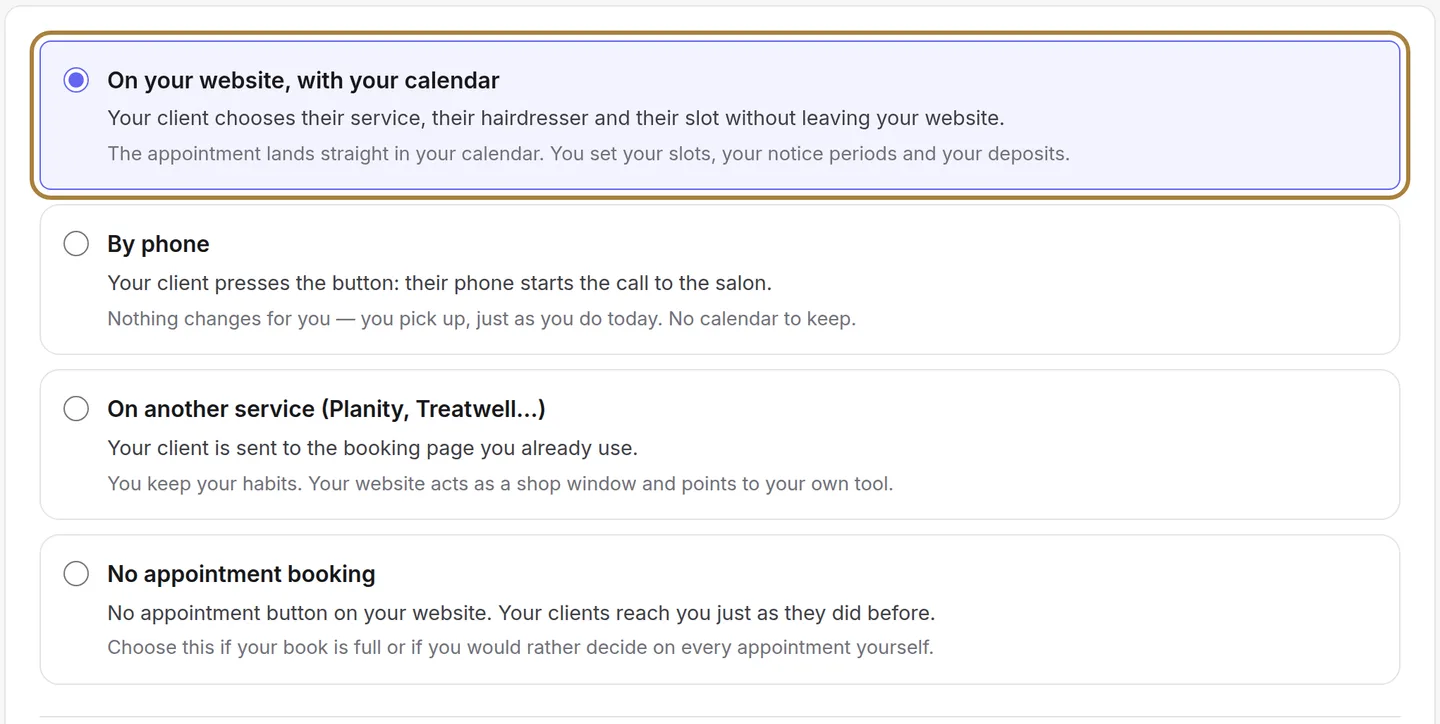
This is the choice that fills the calendar while you're cutting hair. What surrounds it — slot interval, notice, horizon, deposit, cancellation delay — is set in Booking settings. Requests arrive in the calendar as To confirm, or already confirmed depending on your settings; the client receives their confirmations and reminders by email and SMS.
On another service
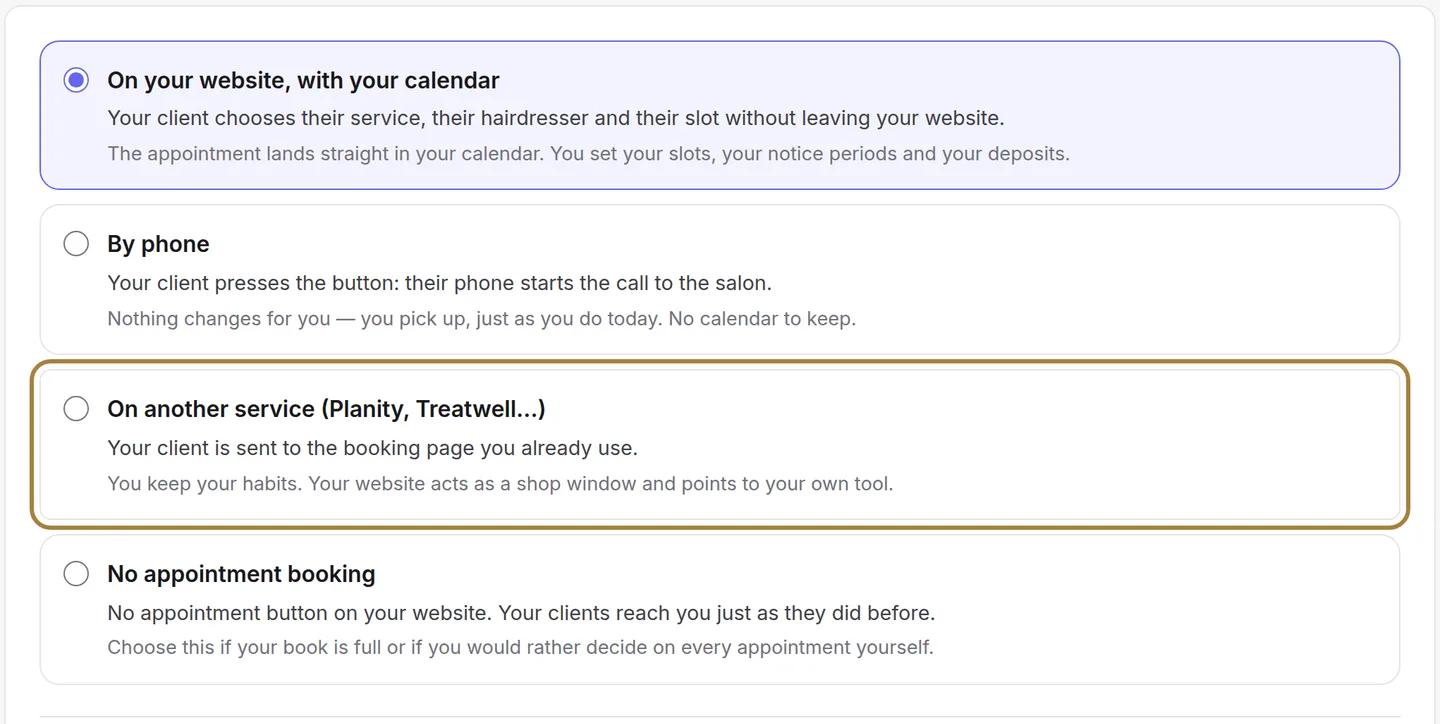
Already on Planity or Treatwell? Keep them. Paste the address of your booking page exactly as it appears in your browser (it starts with https://): your calendar doesn't change, and neither do your habits.
By phone
The button calls the number in your Contact details. With no number saved, the button would have no one to call: add it in Settings › Contact details.
Saving
Save my choice applies the mode to your site right away.
Frequently asked questions
The screen says online booking isn't installed
It's turned on salon by salon: write to us from Exchanges › Help & support and we'll turn it on for you.
Can I require confirming every request?
Yes: the booking "confirmation" setting decides whether an online request arrives as "To confirm" or already confirmed.
Can my clients cancel online?
Yes, up until the cancellation delay you set in the booking settings. Below that, they're invited to call the salon.
Go further
The slot interval, the buffer, the notice period, the horizon, automatic switching to kept, the deposit, the cancellation policy and notifying of moves.
Online bookingTaking a deposit online: connecting Stripe, PayPal or VivaThe money goes to your bank account, not Buiiild's. Choosing the provider, setting up the application, understanding where the money goes.
Online bookingBooking links to shareYour addresses for getting booked: to paste into Instagram, Facebook, your Google listing, your email signature. One link per service, and the right way to copy without mistakes.
Need a hand?
Write to us from your studio, under “Help & support”: we answer quickly, with real people.