Automatic emails
Request received, appointment confirmed, reminder the day before: these emails go out on their own and cost nothing. A switch per message, a preview, a text to rewrite.
In this article
These messages go out on their own around your clients' appointments: request received, appointment confirmed, reminder the day before. You have nothing to do — they work while you're cutting hair. Unlike SMS, these sends cost nothing.
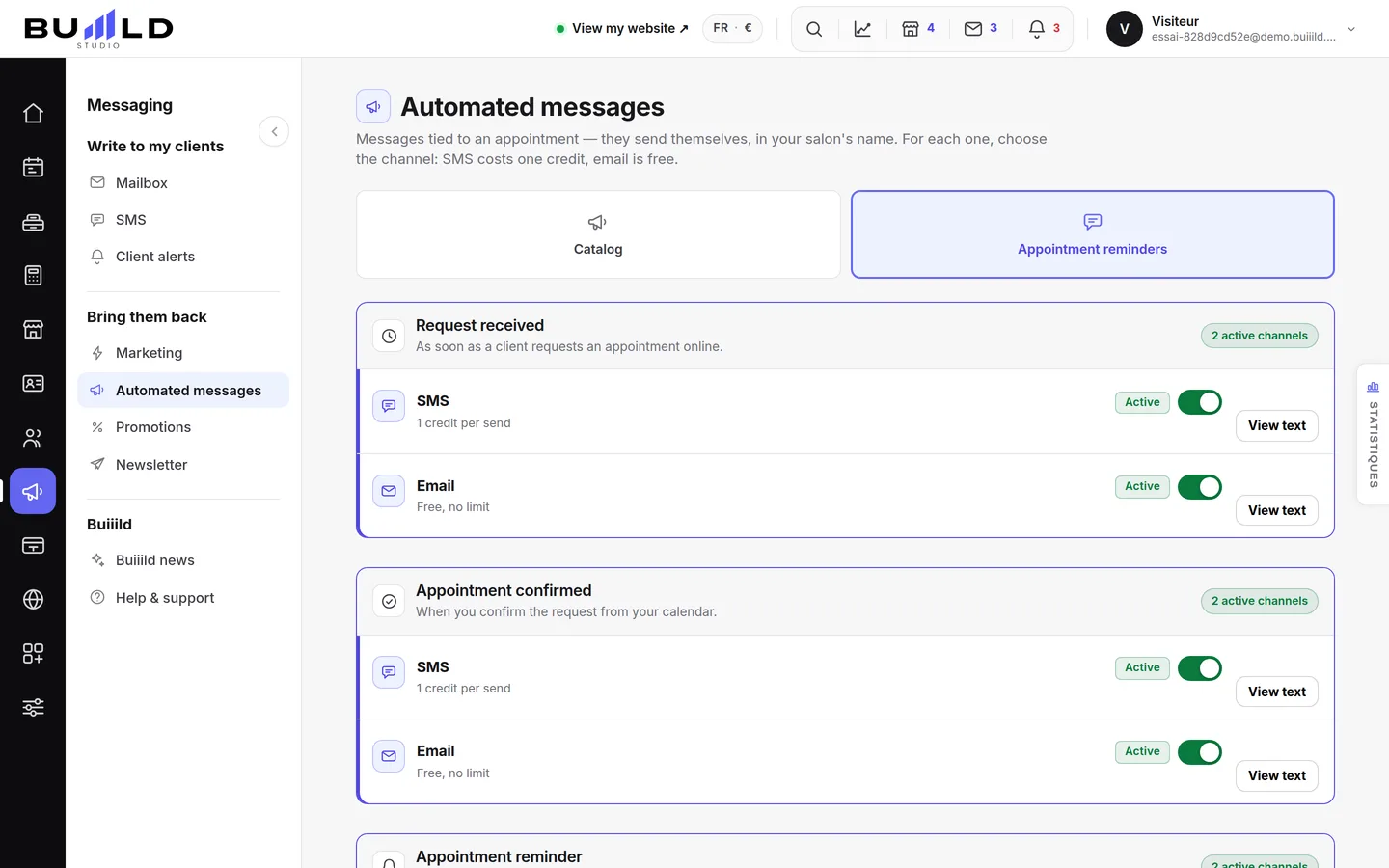
A switch per message

Each email is turned on or off separately. Turn off the one you don't want: the others keep going without it.
The preview, on the right
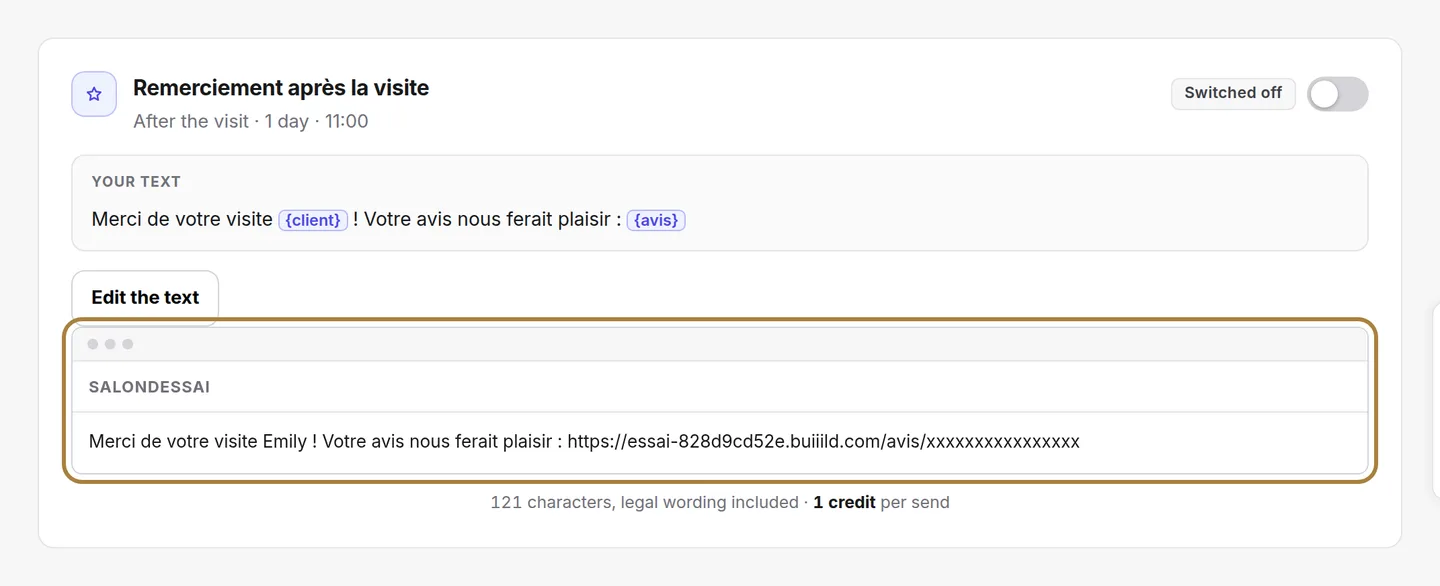
What your client will actually receive, with your salon's name and a sample appointment. Words in curly brackets — {client}, {date} — are replaced with the real details when sent.
Rewriting the text
You can rewrite everything in your own words, insert the client's first name or the date by clicking a variable, and go back to the original text if you change your mind.
Your emails, on the right edge
The tab opens the summary: how many messages are active, how many went out in the last thirty days, and what share was opened.
Frequently asked questions
Do these emails cost credits like SMS?
No, unlike SMS, these sends cost nothing.
Can I turn off a single automatic email without affecting the others?
Yes, each email has its own switch: turn off the one you don't want, the others keep going.
What do words in curly brackets like {client} or {date} mean?
These are variables: they're replaced with the real appointment details when sent.
How do I know if my emails are being read?
The tab on the right edge opens the summary: how many are active, how many went out in the last thirty days, and what share was opened.
Go further
The messages that go out on their own around an appointment. A switch per message, the cost in credits, the text to rewrite in your own words.
Messaging and SMSThe salon's messagingA real mailbox for the salon: requests from your site, your replies, your drafts. Folders, search, bulk actions, reading, new message.
Marketing and reviews"Messages that go out on their own: welcome, follow-up, birthday"Twenty-five ready-to-use messages, sorted by moment in the relationship. You turn them on, they go out without you — and you see what they bring in.
Need a hand?
Write to us from your studio, under “Help & support”: we answer quickly, with real people.