What your client sees when they book
The booking journey on your public site: service, stylist, day, slot, contact details, confirmation — and what they receive afterwards.
In this article
When online booking is active on your site, your client chooses their service, their stylist and their slot, without leaving your site — day or night.
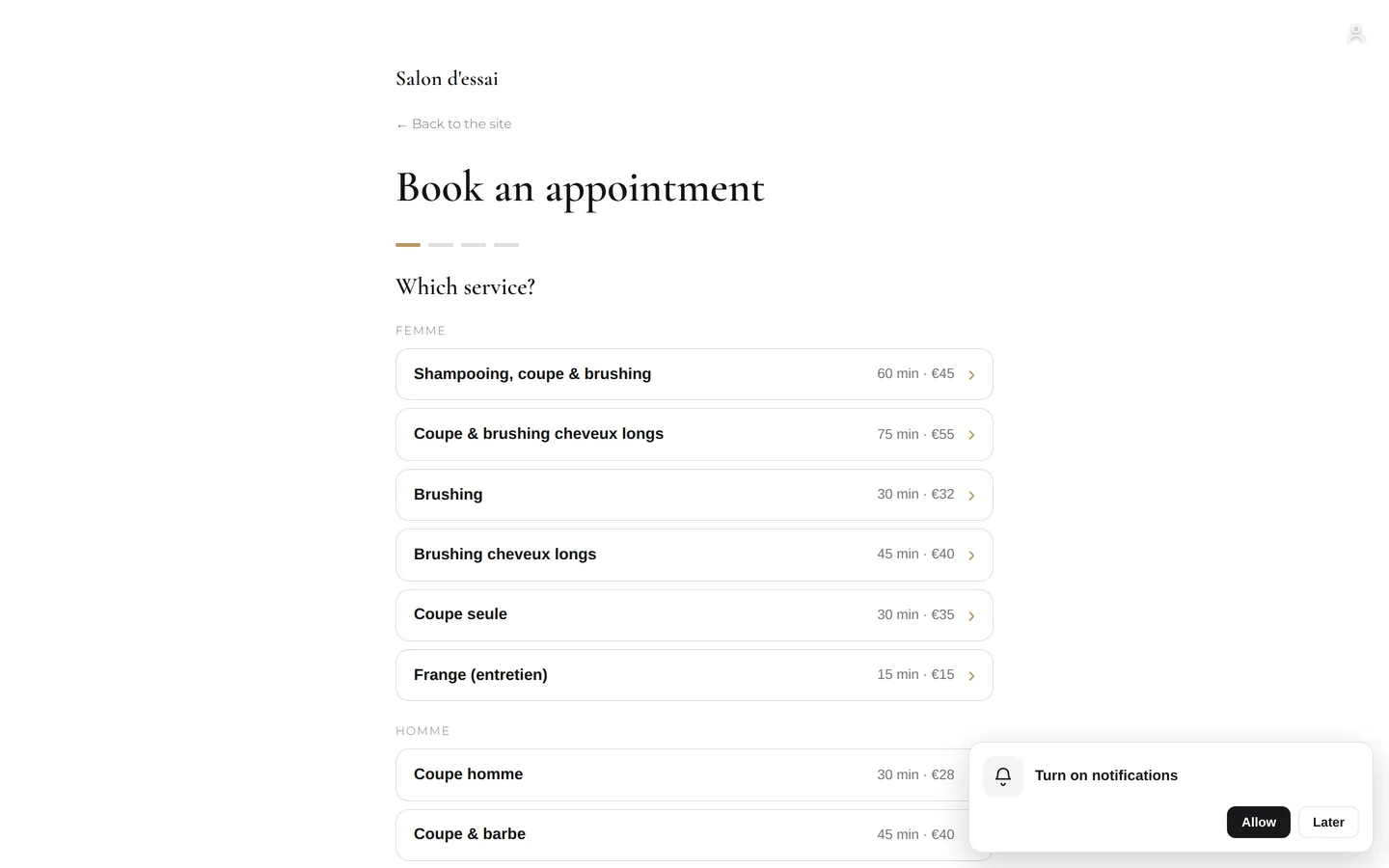
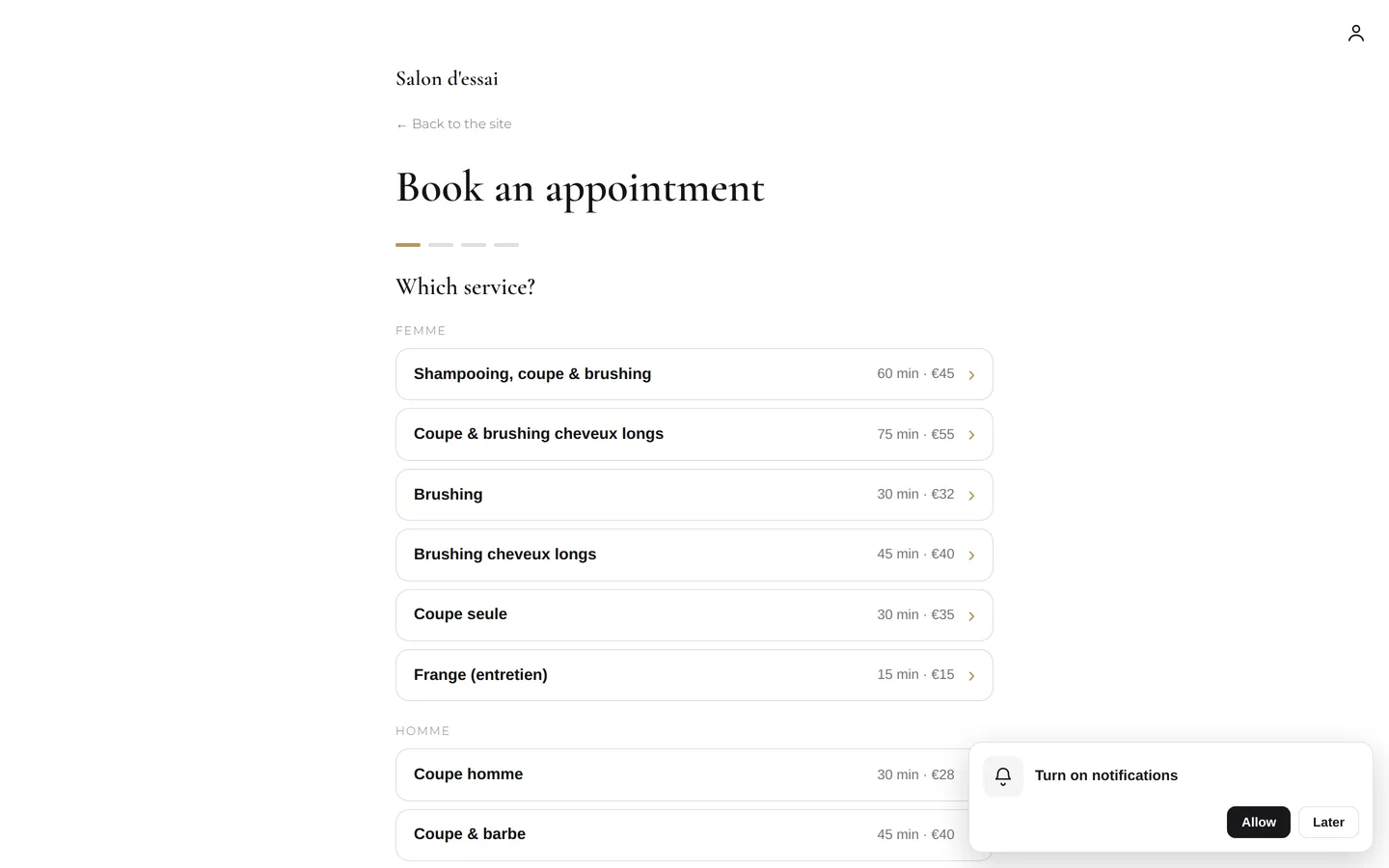
The journey
- The service. Your active services, with their duration and price, arranged by category just like in your catalogue. A service's options are offered at this point.
- The stylist. Only the people who perform this service are offered, or "no preference".
- The day and the slot. Only genuinely free slots appear, based on the salon's hours, the stylist's schedule, the slot interval and the notice period you've set.
- Their contact details. Name, phone, email — this is what creates or finds their client record.
- The deposit, if requested, paid online through your payment account.
- The confirmation. They immediately receive an email, and an SMS if you've turned those on; then a reminder the day before.

What you see on your side
The request appears in the calendar with an orange bar (To confirm) — or black if you've chosen automatic confirmation. The studio's bell flags it for you on every page. A new client has their record created automatically.
Frequently asked questions
How do I check for myself what my clients see?
Open your site from View my site at the top of the studio, and book like a client, ideally from your phone: it's the only way to see exactly what they see.
Can I stop one specific client from booking online?
Yes, from their record: remove their online booking access without shutting them out of the salon. They won't be able to book on their own any more, but you can still book them in at the desk.
Does the client get a confirmation right away?
Yes, an email goes out immediately, an SMS if you've turned that on, then a reminder the day before the appointment.
How do I know a request has just come in?
It appears in your calendar with an orange bar (To confirm), or black if you've chosen automatic confirmation. The studio's bell flags it for you on every page.
Go further
What happens when a client taps "Book an appointment" on your site: your calendar, your phone, another service, or nothing. You can change it whenever you like.
Calendar and appointmentsBooking settings: slots, delays, deposit, cancellationThe slot interval, the buffer, the notice period, the horizon, automatic switching to kept, the deposit, the cancellation policy and notifying of moves.
Online bookingBooking links to shareYour addresses for getting booked: to paste into Instagram, Facebook, your Google listing, your email signature. One link per service, and the right way to copy without mistakes.
Need a hand?
Write to us from your studio, under “Help & support”: we answer quickly, with real people.