Forms and waivers to sign
Colour waiver, parental authorisation, allergy questionnaire: the client signs online before their appointment, and you keep the proof in a register.
In this article
Colour waiver, parental authorisation, allergy questionnaire: the client signs online before their appointment, and you keep the proof.

Starting from a template
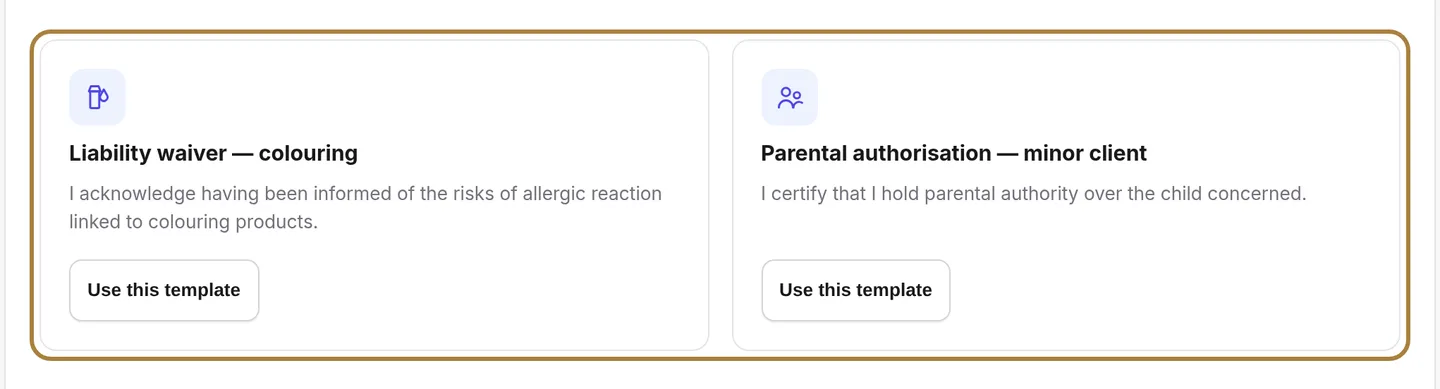
Two ready-made templates — colour and minor — start from one of the two and adapt the wording to your salon, rather than writing from a blank page. The table shows, for each form, the services it's linked to, whether it's required, its active status, and the number of signatures already collected.
Writing what the client will sign

The text on this screen is what they'll read and accept, without you, at home. It must be understandable on its own, and stay true.
- The title they'll see: "Colour waiver", "Parental authorisation". They find it again in their email and on the signature kept in your register.
- The binding text: say what you're going to do, what it can lead to, and what you're asking them to accept. A vague text protects no one — if in doubt about its scope, have it checked before using it.
- The questions to ask beforehand: allergies, ongoing treatment, previous colour. Add any whose answer changes what you do. They come back to you filled in, with the signature.
- Linking it to your services: linked to a service, the form goes out automatically at booking — you no longer have to think about it at the desk.

Linked to a service, the form goes out on its own at booking. - Required, and active: "Required" means the service isn't done without a signature. "Active" lets you switch a form off without deleting it, and without losing the signatures already collected.
Sending it by hand
From an appointment's record, Other actions › Send a form: it goes to the address on the client record. With no email, the request is created and you pass on the link from the register.
The register: your proof, line by line
Every form sent, signed or still pending appears here with its date and the client's name. A form still "sent" isn't signed: follow it up before the appointment, or the service will be done with no written agreement. Open a signature: you see the exact text accepted, the answers to the questions and the signed trace. This page is what stands as proof.
Frequently asked questions
The client has no email address, how do I get a form signed?
With no email, the request is still created: pass on the link to them by hand from the register.
A form stays marked "sent", never signed: what do I do?
Follow up with the client before the appointment. Otherwise, the service risks being done with no written agreement.
I no longer want to use a form, should I delete it?
No, disable it instead (the "Active" box): you keep all the signatures already collected, and you can reactivate it one day.
Do I need to send the form by hand every time?
No, if it's linked to a service it goes out automatically at booking. You can also send it yourself from an appointment's record, via Other actions › Send a form.
Go further
The salon's memory: contact details, indicators, absences, technical record, last session, preferences, private notes, allergies, team alert, GDPR.
Calendar and appointmentsManaging an appointment: confirm, mark kept, move, cancelThe appointment record, the seven statuses, drag and drop, the session notes and what the client receives when you move it.
My website"Services and prices: your catalogue"Your salon's menu: what you offer, at what price, in what order. Creating a service, its categories, the duration that blocks the calendar, the price type, who performs it.
Need a hand?
Write to us from your studio, under “Help & support”: we answer quickly, with real people.