Adding a team member
A page for each person: the name shown everywhere, the trade written for clients, the services they're allowed to perform. Then their hours and their access to the software.
In this article
The team list feeds the calendar, online booking, your site's team page and the commission calculation: one page done right here saves ten corrections elsewhere.
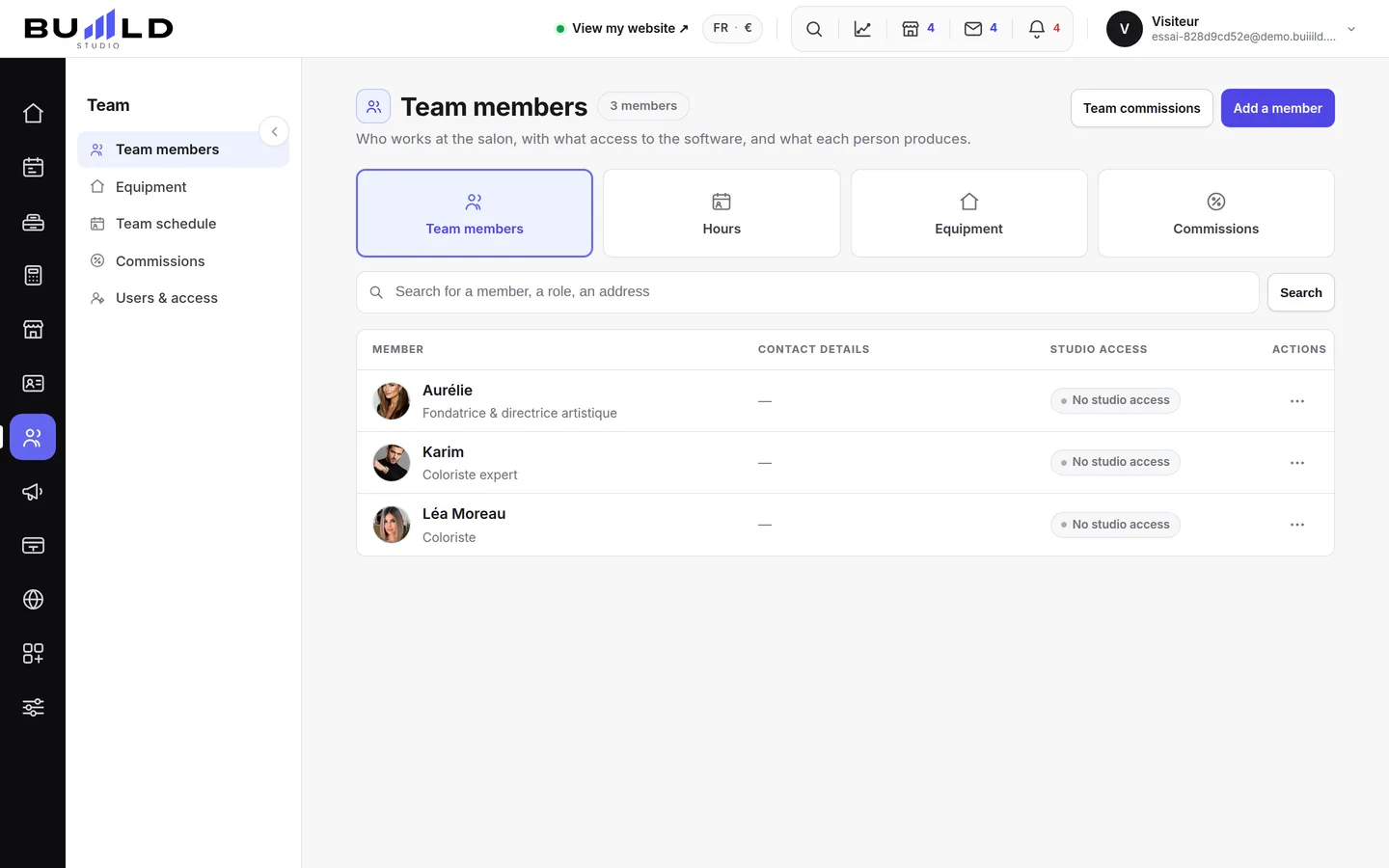
Adding someone

Create the page as soon as an apprentice or a stand-in starts: without a page, the person shows up nowhere and their work isn't counted anywhere.
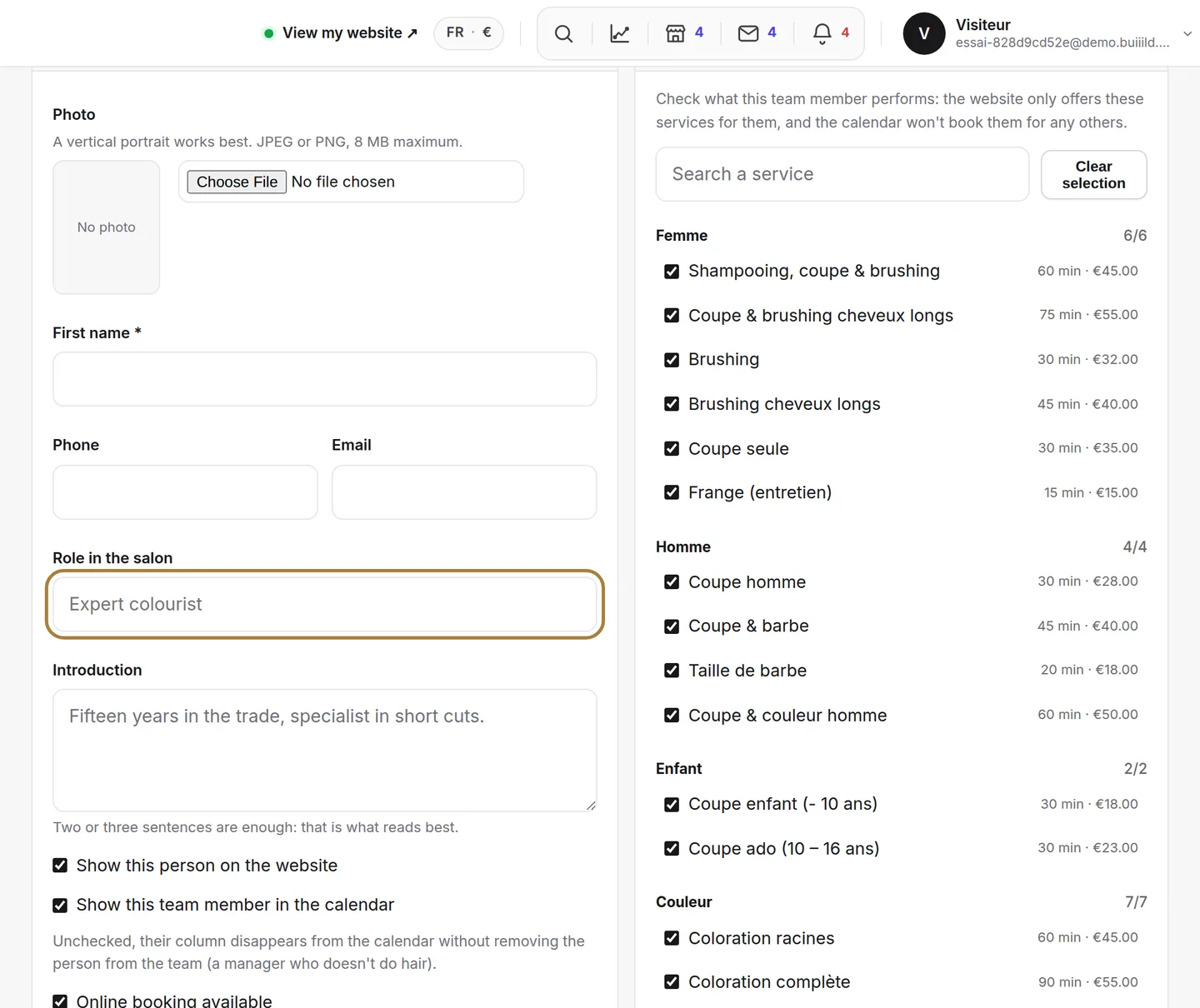
- The name shown everywhere. It appears in the calendar, on online booking and in messages sent to clients: put the first name they know them by.

The name shown everywhere. - The trade, written for clients. "Colourist", "Barber", "Apprentice": this is the word shown under their name on your site. It reassures as much as it informs.
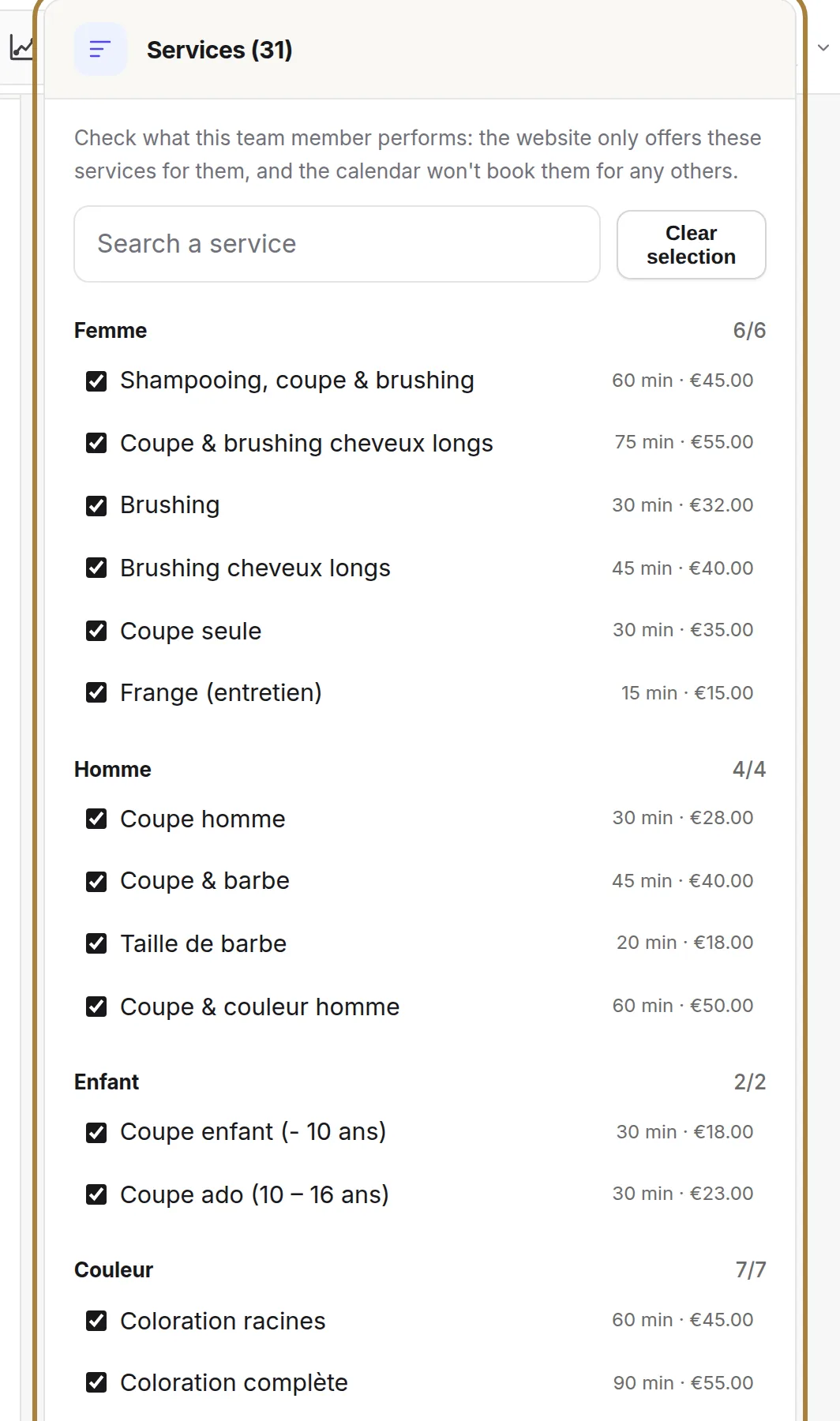
The trade, written for clients. - What they're allowed to do. Only the ticked services will be offered with them for online booking. Tick carefully: one extra box, and a client books a colour with someone who doesn't do it.
What they're allowed to do. - Create the page. Their hours are then set in the team's schedule, and their access to the software is sent from their page, once it's created.
Working here isn't the same as opening the software

A page describes a team member; access to the studio is granted separately, through an invitation, with a role that limits what they see — an apprentice doesn't need to see your revenue. See Roles and access.
Opening a page
This is where you set the services entrusted to them, their public presentation (photo, text) and their visibility in online booking.
The rest of the Team family
Hours, working time, commissions and equipment are set from the neighbouring tabs: same world, different screens. Find someone by name, trade or email — handy past a dozen pages, or when former team members stay in the list to keep their history.
Frequently asked questions
Does an apprentice need access to the software?
Not necessarily: their page is enough for them to appear in the calendar and on the site. Access to the studio is only granted separately if they need to sign in themselves.
A team member is leaving, should I delete their page?
No, disable it instead: their history and past commissions stay readable, and they disappear from the calendar, the site and online booking.
I ticked a service by mistake on a page, what's the risk?
A client could book that service with someone who doesn't actually perform it. Untick it as soon as you notice.
How do I find someone in a long list?
Search by name, trade or email — handy past a dozen pages.
Go further
Who can get into the studio, and with what rights. One account per person, never a shared password; the manager sees everything, an employee sees the calendar, clients and messages.
Calendar and appointmentsThe team's schedule: hours and time offWho works when: each stylist's hours, up to two slots a day, and their time off. The calendar and online booking adapt on their own.
Team"Commissions: what each person earns"The calculation starts from the sales assigned to each person and applies the rule you've set, for the whole salon or person by person.
Need a hand?
Write to us from your studio, under “Help & support”: we answer quickly, with real people.