Taking a sale
Basket, tip, payment: a sale in three steps. Until you've taken payment, nothing is issued; after that, the receipt is final.
In this article
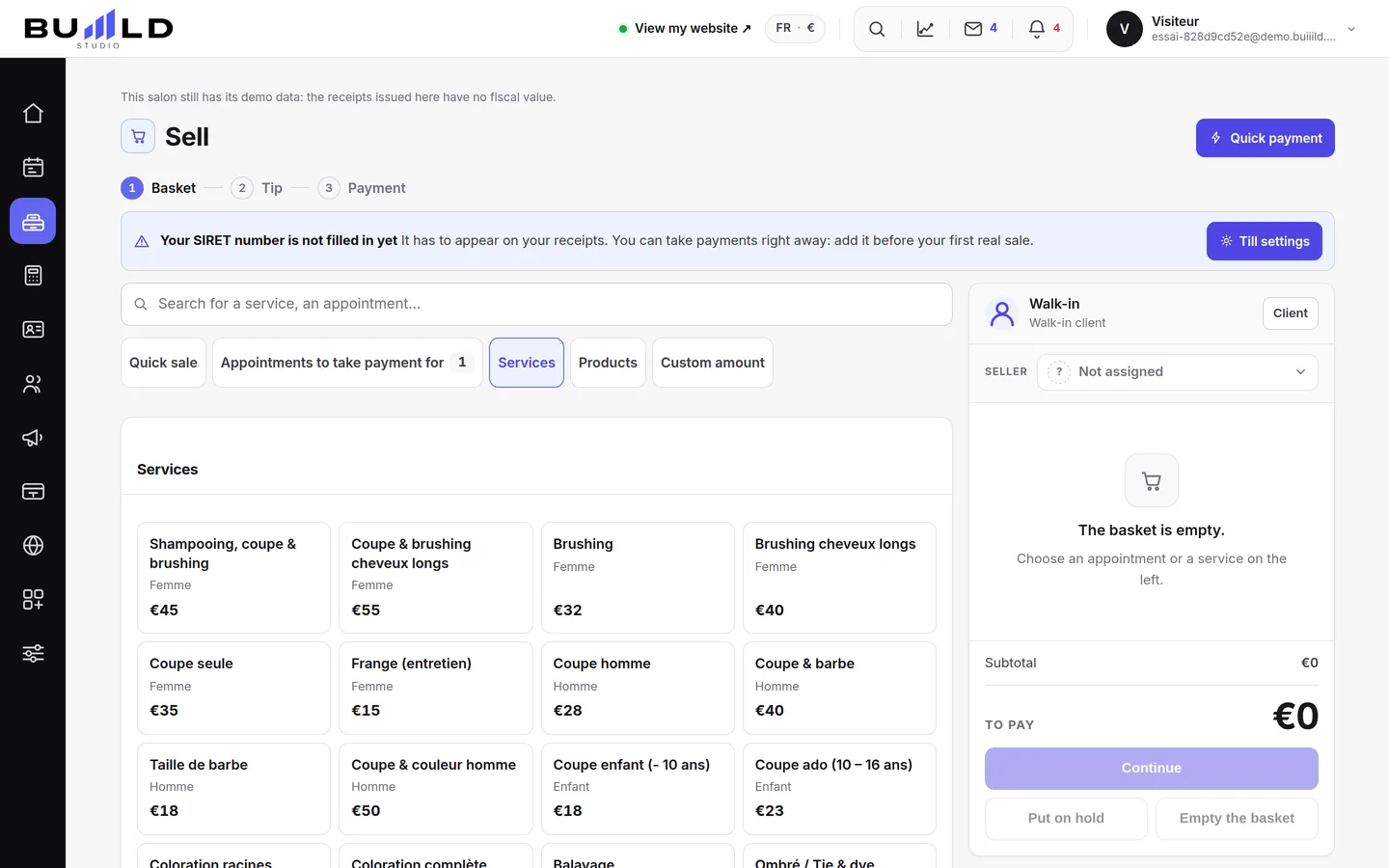
The till takes payment for everything the salon sells: services, products, treatment packages, packages, gift cards. A sale moves in three steps — basket, tip, payment — from left to right, and you can go back as many times as you like.

1. Building the basket

The catalogue is arranged in tabs: Today's appointments (finished appointments, never paid — one click adds their services to the basket), Services, Products, Free amount, Gift cards and To invoice (the cancellation or no-show penalties you've set).

Type three letters: the cut, the bottle, the treatment package, the package. You don't need to know which tab it's in — the search looks everywhere at once.
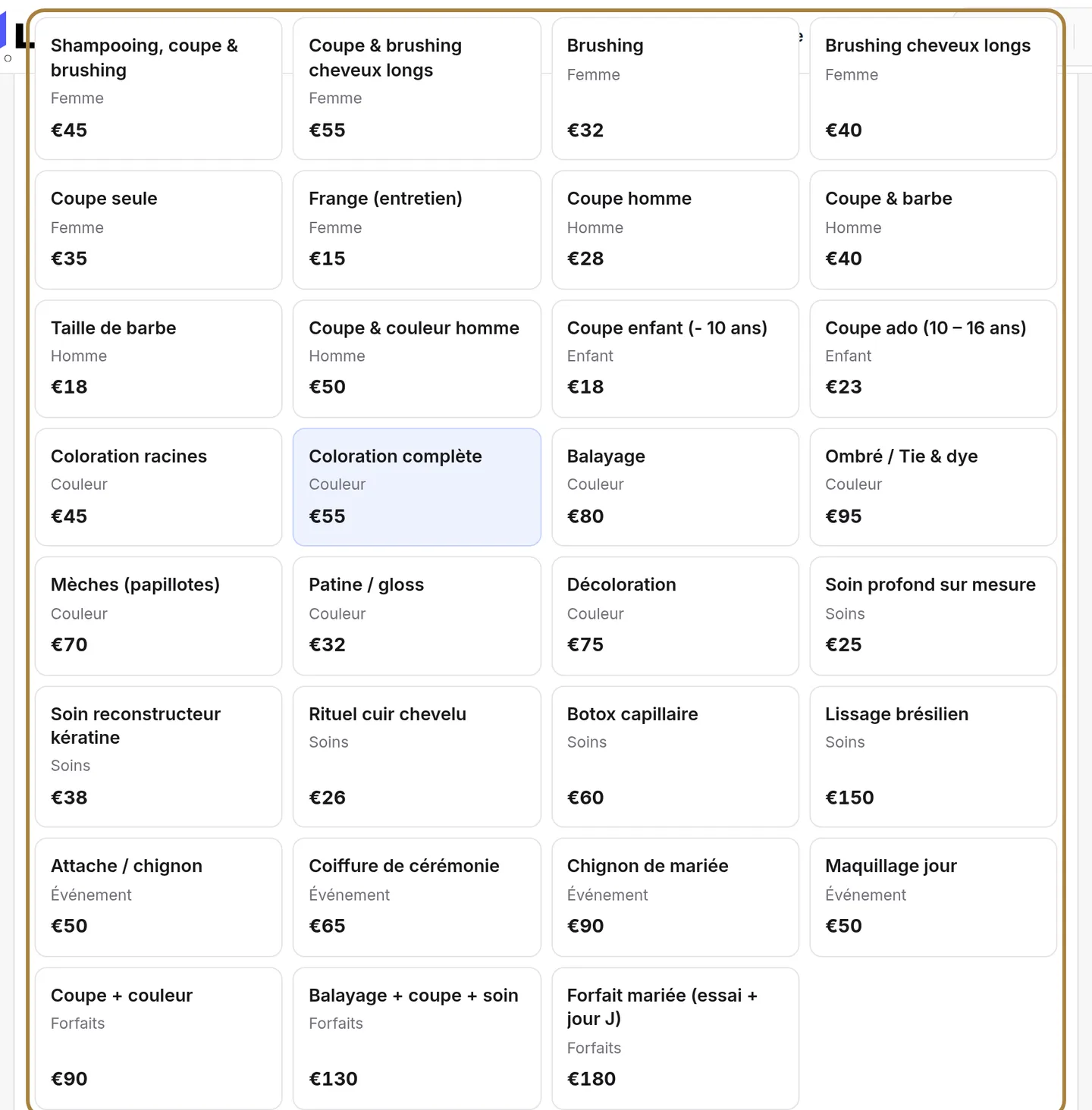
Every tile adds its item to the basket. A product sold here comes out of stock automatically at payment; a treatment package credits its sessions to the client's record: you have nothing to log elsewhere.
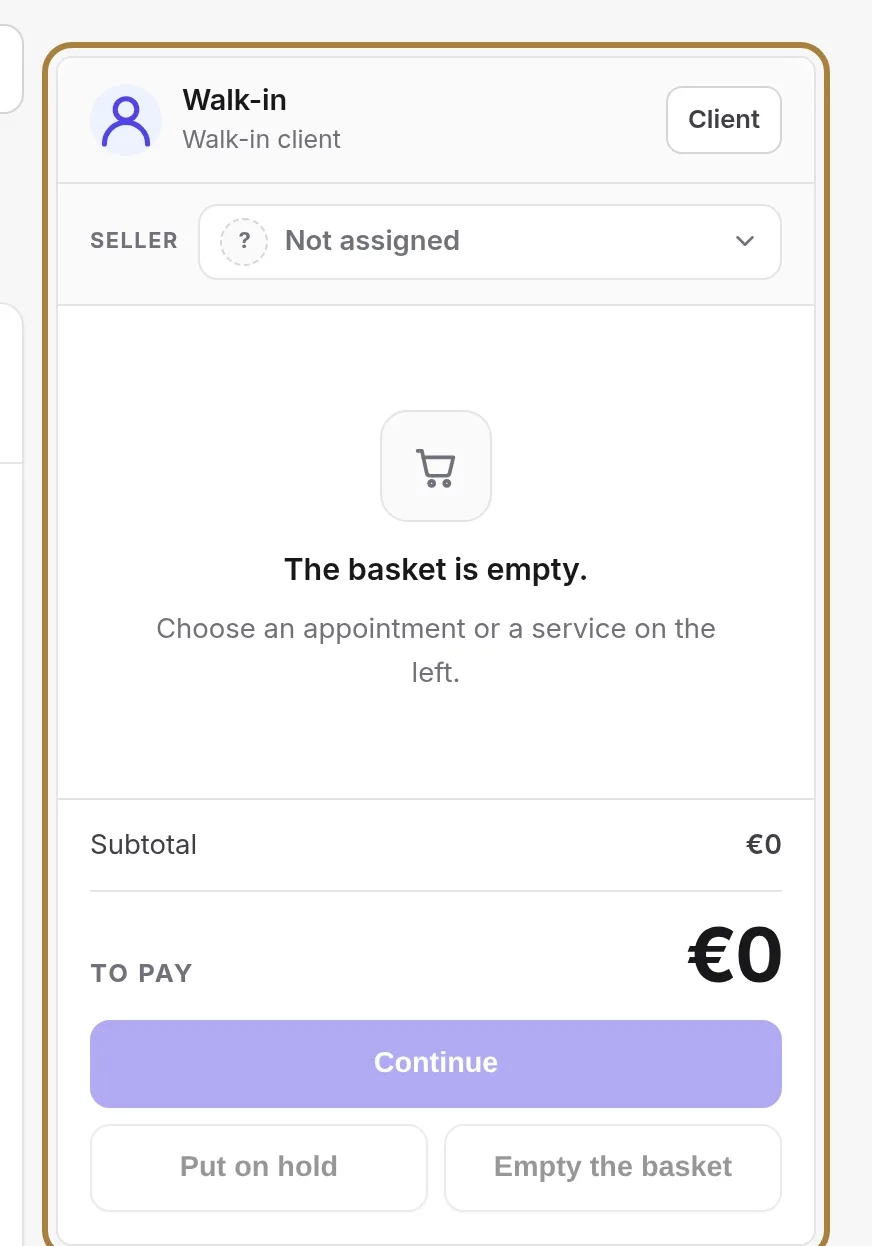
In the basket:
- Link the sale to a client so it appears in their history and counts towards their loyalty.
- Apply a discount, on a line or on the whole receipt.
- Enter the team member who performed the service: this feeds their commissions and their figures.
- Add a note printed on the receipt.
2. The tip
A free amount or a percentage, assigned to the team member. It's counted separately in the day's sales and in closings.
3. Payment
Cash, card, cheque, transfer, gift card, or other — depending on the methods accepted in Till settings. A payment can be split between several methods. In cash, enter the amount received: the change due is shown.
Taking payment locks the document
On click, the receipt gets a gapless number, a fingerprint, and becomes final: the 2018 law on till software (article 286 I-3° bis of the French tax code) forbids changing it. So an error is corrected with a credit note, never by going back on it. Put on hold keeps the basket aside without issuing anything.
The receipt prints, or is sent by email to the client. Duplicates are numbered.
Frequently asked questions
I got the price wrong on a receipt already paid
Open the receipt from the sales journal and issue a credit note, then redo the sale at the right price. The original receipt stays, the credit note cancels it: that's what the law requires.
The client pays part now, the rest later
Take payment for the part received: the receipt is issued with an unpaid balance, and it appears in the Unpaid tab of the journal until settled.
Can an employee take payments?
Yes. The screens that commit the business — closings, compliance, settings — only appear for management accounts: an employee takes payments, they don't close the till.
Go further
An amount, a payment method, it's done: for a counter sale that fits no other case. A real receipt, numbered and chained.
Till and paymentsToday's sales and closing the dayTaken, receipts, credit notes, tips; sold on one side, taken on the other; then the closing that locks the day and chains it to the previous one.
Till and paymentsThe sales journal: receipts, drafts, unpaid, credit notesFinding a receipt by number, name or amount; reprinting a duplicate; following up an unpaid one; issuing a credit note; reading the fingerprint that stands as proof.
Need a hand?
Write to us from your studio, under “Help & support”: we answer quickly, with real people.