Discovering your studio
The dashboard, the menu, the bell, the "View my site" button: five minutes to find your way around your salon's software.
In this article
The studio is your salon's software: this is where you run your site, your appointments, your clients, your till and your messages. You get in from studio.buiiild.com with the email address and password chosen when you signed up.

The dashboard
On opening, you land on your dashboard: a summary of the day, nothing to set up.
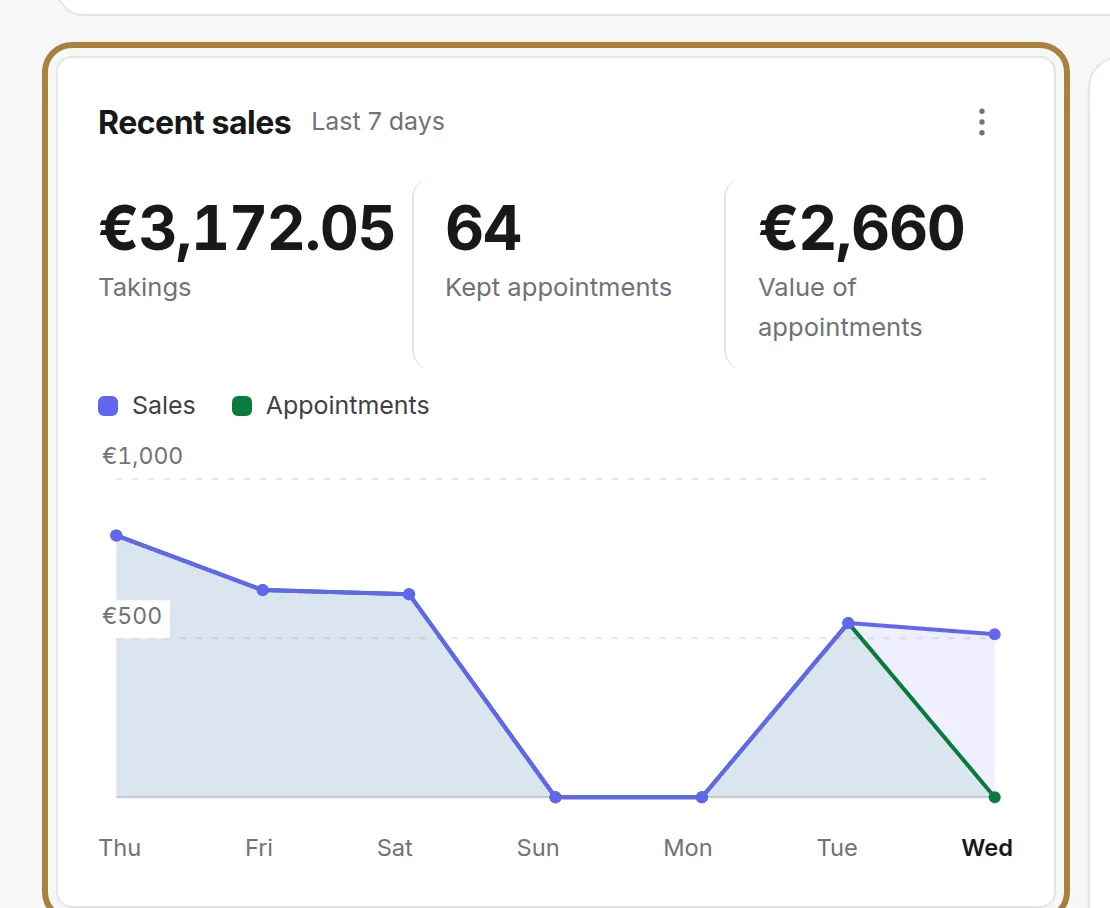
- Your recent sales: cash taken over the last seven days and the number of appointments kept. The blue curve follows your sales, the green one your appointments; hover over a day to read its detail.
- Upcoming appointments: your next six appointments over seven days, with their status. Full calendar opens the full schedule.
- Your day: what's left to do hour by hour, and how full your chairs are today and this week.
- Recent activity: appointments created, moved or kept, sales taken, reviews published.
- Your reputation: the salon's average rating and the number of published reviews.
- My salon: your background counters — services on the menu, team, clients, subscribers, site visits. Each figure opens its page.
The left-hand menu
The menu is arranged by families, in the order of a salon's day: Bookings, Till, Clients, Team, Exchanges, Online booking, My site, Modules, Settings. Click a family to unfold its screens; hover over an entry to read what it's for.

On a phone, the menu folds behind the three-line button, top left: the same screens, in the same order.
The top bar

- View my site opens your showcase site in a new tab, exactly as your clients see it. Any change made in the studio is already live there.
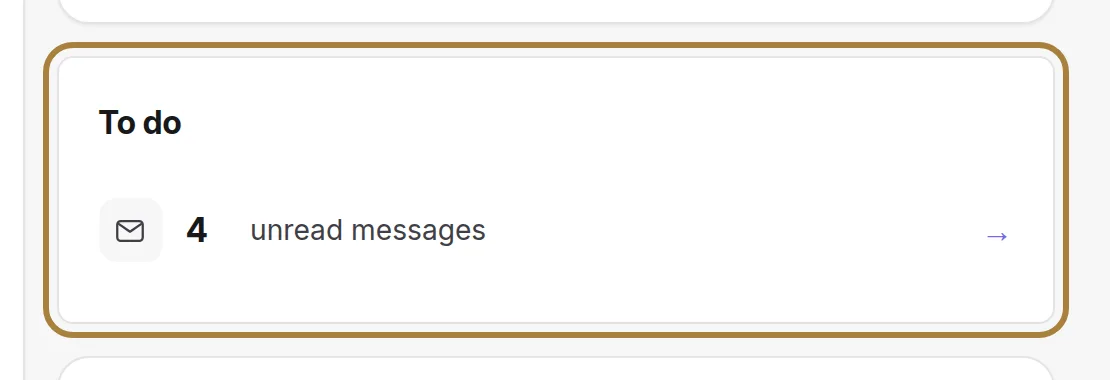
- The bell follows you on every page: appointments to confirm, unread messages, reviews to publish. A click opens the detail.
- The magnifying glass launches the global search: a client, a service, a screen. The shortcut Ctrl+K opens it from anywhere.
- Your avatar, on the right, leads to your account, your subscription and your invoices.
Getting your salon ready
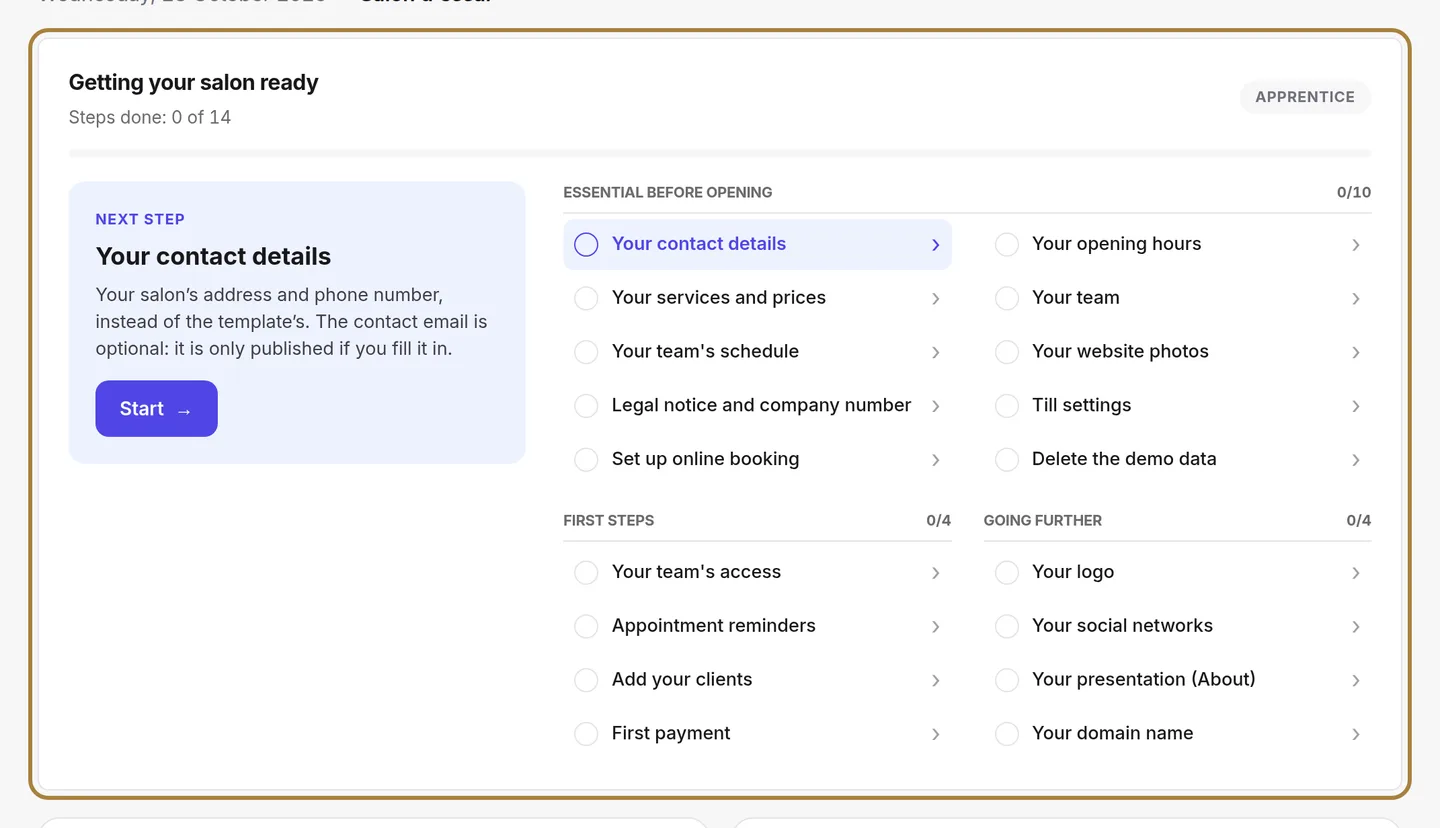
Under the title, the Getting your salon ready block shows what is left to set up before your salon is ready to work: on the left the next step and its Start button, on the right the full list, where each line opens the right screen. A step is only ticked once you have set it up yourself, and the block disappears when everything is done. → Your first week with Buiiild
The guided tours
Every important screen introduces itself the first time you visit: a cursor shows you where to click, a bubble explains what each area is for. You can pause, skip, or leave at any time.
To watch a tour again, click the round button, bottom right of the page: it offers to replay the tour, or to ask a question — the answer takes you to the right page, spotlight on the right element.
Frequently asked questions
Where do I find my public site?
Click View my site at the top of the studio. Its address is the one chosen at sign-up (your-salon.buiiild.com) or your own domain name if you've connected it.
I closed the guided tour too fast, how do I watch it again?
The round button, bottom right of each page, offers "Replay the tour".
Go further
The fourteen steps that get your salon ready to work, in order: contact details, hours, services, photos, team and schedule, legal notice, till, online booking, then your real clients. A guide for each step.
Getting startedCreating your salon and trying it for freeFrom buiiild.com: a few questions, your site and your studio are created, the trial starts. Thirty days free, no credit card, no commitment.
Getting startedInstalling the studio on your phoneThe studio sits on your home screen like an app, full screen, with notifications. The steps on Android, on iPhone, and why it's essential for being notified.
Need a hand?
Write to us from your studio, under “Help & support”: we answer quickly, with real people.