Putting your products online
Your whole aisle, a product page (identity, price and margin, what the client sees, information, variants, stock), creation in a single screen, and importing a Shopify or PrestaShop catalogue.
In this article
A shop product is a stock product: same page, same quantity. Putting it online means giving it a page on your site.

Your whole aisle
Every product with its price, its stock and its status on the site. This is where you open a page to fix it.

Type a name or a brand, narrow it to one category, then sort by price, by stock or by newest.

Products online, those that stay offline, those out of stock: each view carries its counter, so you see straight away what's off. The stock badge turns to alert below your threshold, and the status shows whether the product is visible on the site.
A product page
| Card | What it holds |
|---|---|
| Identity | The name the client sees, the brand, the category, the barcode and the main photo. The checkbox at the bottom takes the product off sale without deleting anything. |
| Price and your margin | Selling price including tax, VAT rate, alert threshold. The purchase cost is only used to calculate your margin: the client never sees it. |
| What the client sees | Visibility on the site, the description, its page address, up to five photos in the gallery. |
| Product information | Capacity, composition, instructions for use: these blocks become the tabs on your site's page. |
| Sizes and shades | The same reference in several versions, each with its own price, stock and barcode. |
| Stock, and its history | What's available, the threshold, the quick movement for a delivery or breakage, and everything that's moved, dated and signed. |
Creating a product

Identity, price, online page and variants are saved together in one go. Name and price are the only two required fields: the rest can be filled in later.
- What identifies the product: the name, the brand, the category and the main photo.
- The price, VAT, starting stock: enter the price paid by the client, adjust the VAT if needed, and state what you already have in reserve.
- The site page: tick visibility, write the description, check the page address — it's suggested automatically from the name — and add up to five photos.

The site page: visibility, description, address, photos. - Sizes and shades: declare your axes — size, shade — and their values: the variant grid builds itself before your eyes and is created along with the product. Leave it empty if the product only exists in one version.
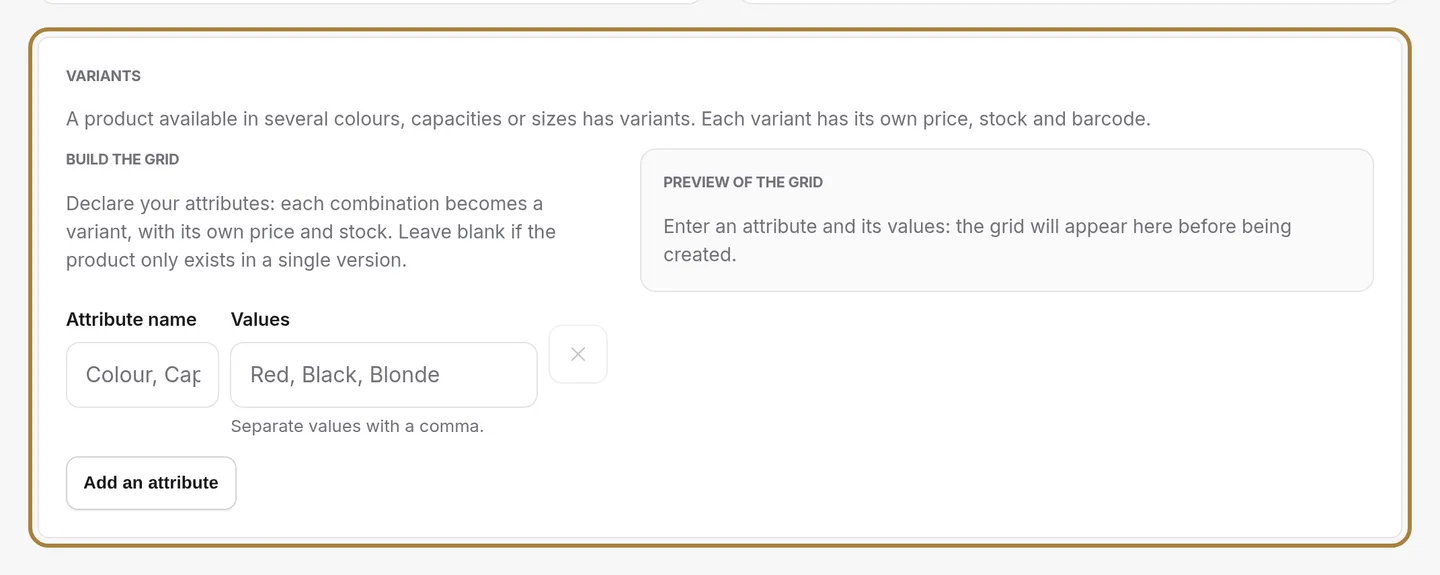
Sizes and shades, right away.
Importing a catalogue
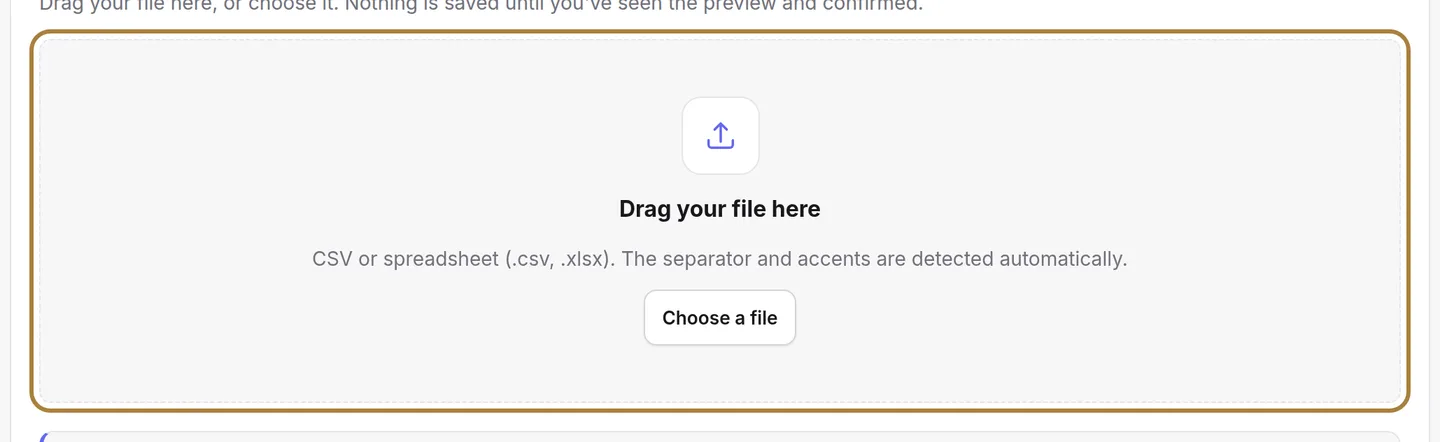
Coming from Shopify, PrestaShop or a spreadsheet? A catalogue imports in four steps: you drop your file, you check what each column matches (each one is shown with its first three values), you look at the preview — how many products created, updated, set aside and why —, and only then do you launch it. Nothing is saved before the last step. No file? Download the blank template: it carries the right columns and two example rows.
Frequently asked questions
What fields are required to create a product?
Just the name and the price. Everything else — photos, description, variants, supplier — can be filled in later, at your own pace.
Can the client see my purchase price?
No, never. The purchase cost is only used to calculate your margin internally.
Can I import my Shopify or PrestaShop catalogue?
Yes, an export from either platform is recognised automatically on import, just like a standard spreadsheet.
I don't have a file ready yet, how do I get started?
Download the blank template from the import screen: it carries the right columns and two example rows to replace with your products.
Go further
The shop adds an aisle to your site: your clients order and pick up their bag at the salon, or have it delivered. Turning it on, and reading its dashboard.
Stock and suppliersThe salon's stockWhat your shelf is worth, finding a product, reading on-hand / promised / sellable, and the day's actions: receiving, counting, exporting, new product.
Stock and suppliersAdding a productThe name you'll read at the counter, the sale and purchase prices, the alert threshold, the quantity on the shelf and the supplier to reorder from.
Need a hand?
Write to us from your studio, under “Help & support”: we answer quickly, with real people.