Gallery, portfolio and before/after
The photos and videos that show the atmosphere, your work in a mosaic with category filters, and your transformations with a before/after slider.
In this article
Three sections to show what you do. They only appear on the site once there's at least one media item.
The gallery
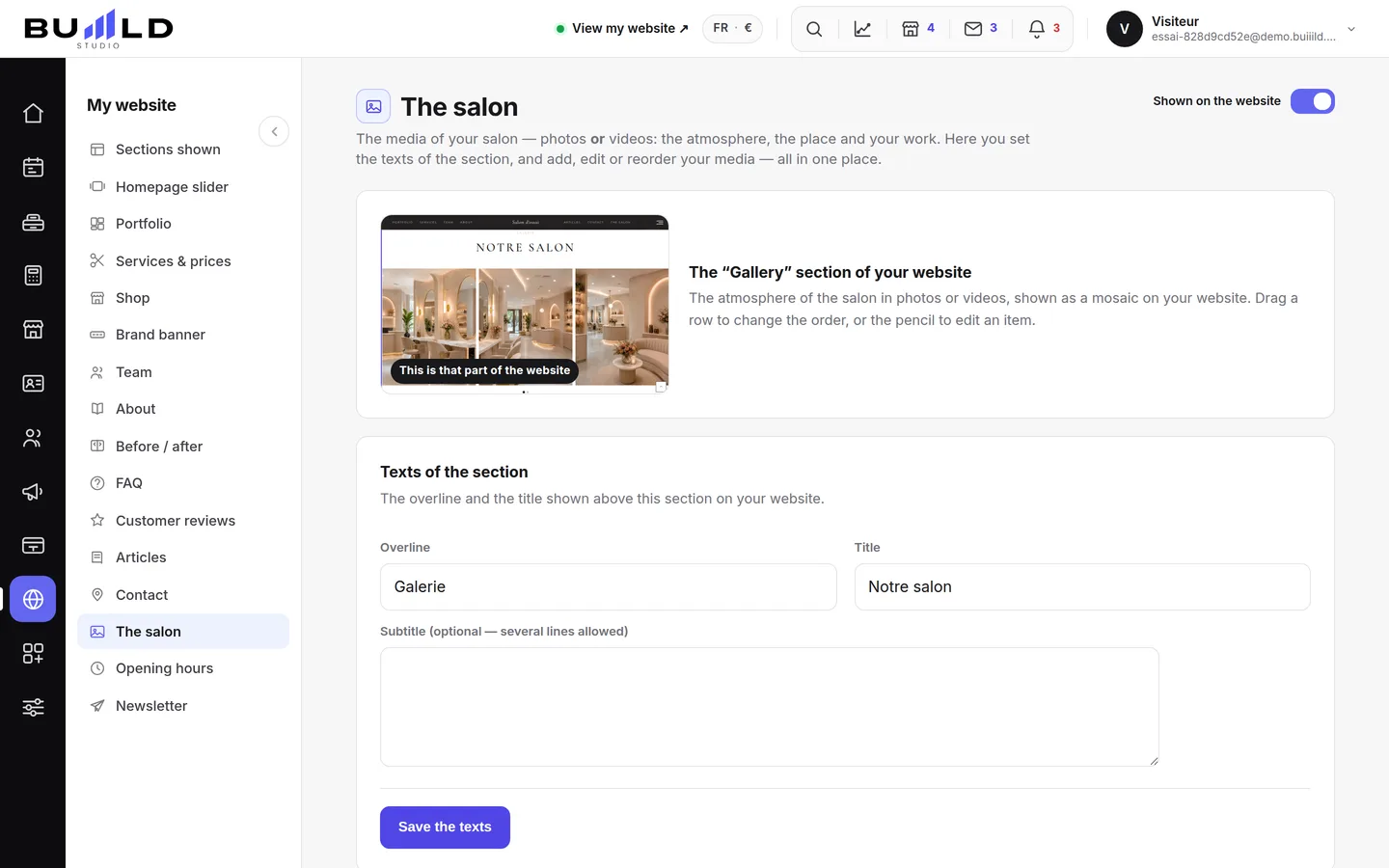
The photos and videos that show the atmosphere, the space and what you do — in a mosaic on your site.

One line per media item, with its thumbnail; the "Video" badge tells films apart from photos. Grab the handle and drag: the mosaic order follows. The pencil replaces the file or changes the caption; the bin deletes, always with confirmation. Tick several media items to delete them all at once.

Photo or video, with a caption if you like. The form clears after each addition: perfect for adding ten in a row.
The portfolio

Your best work — photos or videos — in a mosaic. Each piece carries a title and a category (Cut, Colour…): each category becomes a filter tab on your site. A cut you're proud of? Photograph it before the client leaves.
Before/after
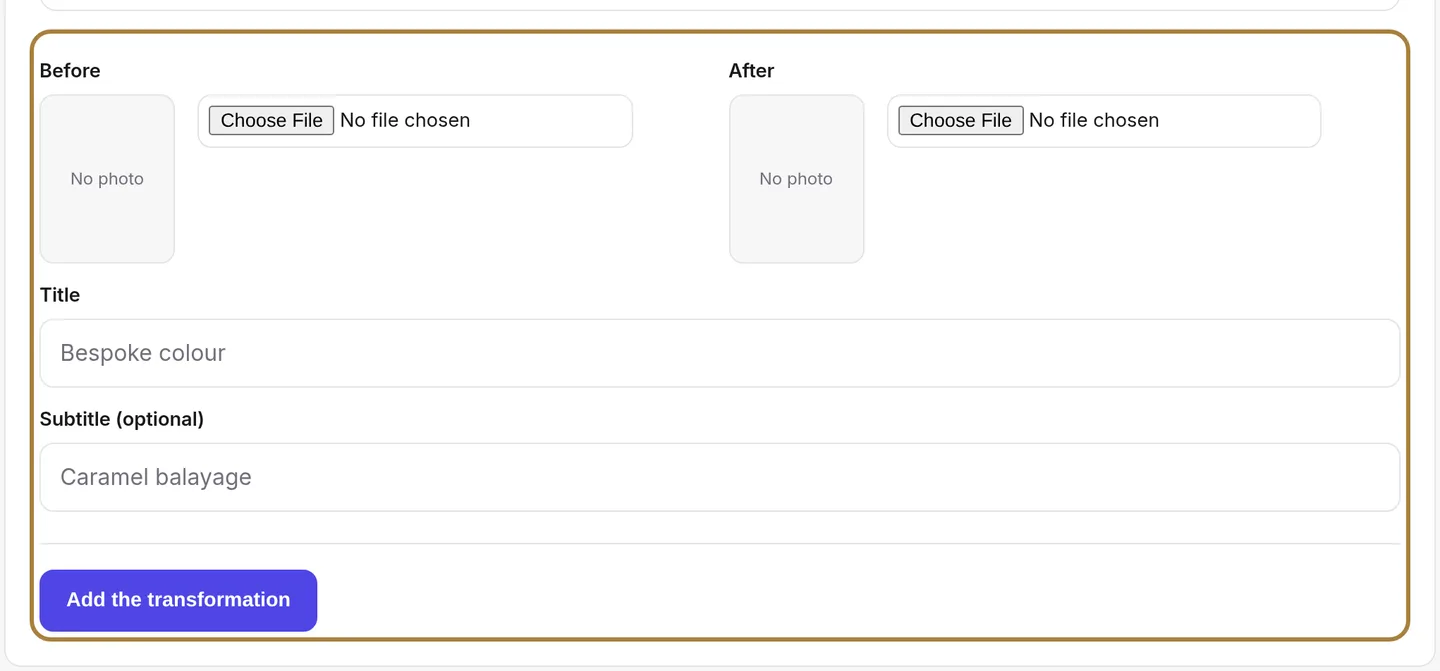
Your transformations, two photos at a time. On the site, the visitor drags a slider to go from before to after — very convincing. Take both photos from the same angle: the effect will be all the stronger.
Frequently asked questions
From when do these sections appear on the site?
As soon as the first media item is added. Before that, they stay invisible.
How do I change the order of the gallery photos?
Grab a line's handle and drag: the mosaic order on the site follows.
How can my visitors filter the portfolio by type of work?
Every category you give a piece of work (Cut, Colour…) automatically becomes a filter tab on your site.
How do I get a good before/after effect?
Take both photos from the same angle: that's what makes the transformation slider really convincing.
Go further
The big scrolling banner at the top of your site. Two slideshows — computer and phone —, photo or video visuals, three lines of text per visual, the order by drag.
My website"Your site's sections: show, hide, order"Your homepage is made of stacked sections. Choose which ones show and in what order — your site's remote control — and the mechanics common to every "My site" screen.
Marketing and reviewsVisuals to share on your social networksReady-to-publish images, in your salon's colours: choose a template, check the preview, download.
Need a hand?
Write to us from your studio, under “Help & support”: we answer quickly, with real people.