"Your site's sections: show, hide, order"
Your homepage is made of stacked sections. Choose which ones show and in what order — your site's remote control — and the mechanics common to every "My site" screen.
In this article
Your homepage is made of stacked sections: slideshow, about, services, team, hours, gallery, reviews, articles, FAQ, newsletter, contact… The Sections screen chooses which ones show and in what order.

One line per section
Each line represents a section of your site: its order number, its name and a short summary. The number is the actual display order on the homepage.
Changing the order

Grab the handle and drag (on a phone: the up/down arrows): the numbers update and the order chosen here applies to the site and to the "My site" menu on the left — one single order everywhere.
Visible or hidden

The badge says whether the section shows on your site. To show or hide it, the switch is on the section's own tab — a single place for this setting. The homepage itself always stays first.
The mechanics common to every "My site" screen
Every screen in the My site family is built the same way:
- The switch, at the top: turned off, the section disappears from the homepage without you losing what it contains — turn it back on whenever you like.
"On every \"My site\" screen: the switch that shows or hides the section." - The live preview: your real site's section, in miniature, updated on its own after every save. You always know what you're editing.
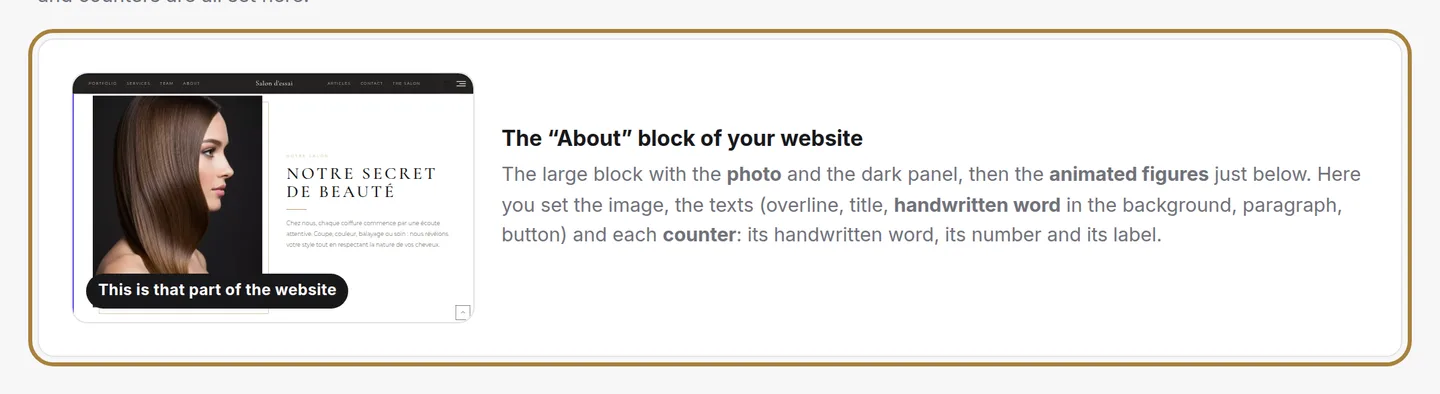
The live preview of the section, updated after every save. - The section's texts: the eyebrow, the title and the introduction shown above the content.
- The content specific to the section: photos, figures, questions, brands…
- Save: nothing changes on the site before that.
Frequently asked questions
How do I change the order of my sections?
From the Sections screen: grab the handle and drag (on a phone, the up/down arrows). The order chosen applies to the site and to the "My site" menu at the same time.
How do I show or hide a section?
Not from the Sections screen: open the section's own tab, the switch is at the top there — a single place for this setting.
Can I move the homepage elsewhere in the order?
No, it always stays in first position.
Go further
Your salon's menu: what you offer, at what price, in what order. Creating a service, its categories, the duration that blocks the calendar, the price type, who performs it.
My websiteThe homepage slideshowThe big scrolling banner at the top of your site. Two slideshows — computer and phone —, photo or video visuals, three lines of text per visual, the order by drag.
Salon settingsLogo and site appearanceYour site's visual identity: your logo — never mandatory — and your fonts, matched to your layout, with a live preview.
Need a hand?
Write to us from your studio, under “Help & support”: we answer quickly, with real people.