The homepage slideshow
The big scrolling banner at the top of your site. Two slideshows — computer and phone —, photo or video visuals, three lines of text per visual, the order by drag.
In this article
The big scrolling banner right at the top of your site — the first thing your visitors see.

Computer and phone
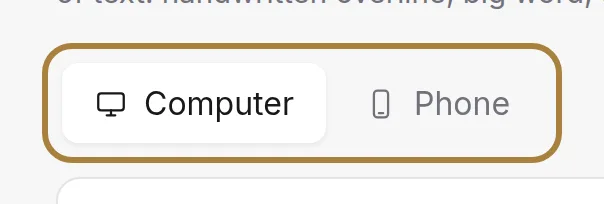
Two separate slideshows: one for large screens, one for phones (portrait format). Each is set in its own tab. Think about the phone: many clients will only see that one.
Your visuals

One card per visual — photo or video — with its numbered thumbnail: this is the scrolling order on the site. Grab the dotted handle and drag the card higher or lower: the order follows immediately.
Each visual carries its three lines: the handwritten eyebrow, the big word and the third line. You can also swap the photo or video without touching the texts. The bin removes the visual — a confirmation is always asked.
Adding a visual

A new photo or video, with its three lines of text. It joins the slideshow as soon as it's added.
Saving
One single button for every text of every visual. If a video is still compressing, it waits until it's ready.
Frequently asked questions
Do I need to fill in both slideshows?
It's recommended: one is for large screens, the other for phones. Many clients will only ever see the phone one.
How do I change the order of the visuals?
Grab the card's dotted handle and drag it higher or lower: the scrolling order follows immediately.
Can I change a photo without retyping the texts?
Yes. You can swap a visual's photo or video without touching its three lines of text.
Why does saving take time after adding a video?
A video compresses in the background after being added. The Save button simply waits until it's ready.
Go further
Your homepage is made of stacked sections. Choose which ones show and in what order — your site's remote control — and the mechanics common to every "My site" screen.
My websiteGallery, portfolio and before/afterThe photos and videos that show the atmosphere, your work in a mosaic with category filters, and your transformations with a before/after slider.
Salon settingsLogo and site appearanceYour site's visual identity: your logo — never mandatory — and your fonts, matched to your layout, with a live preview.
Need a hand?
Write to us from your studio, under “Help & support”: we answer quickly, with real people.