The Team section of your site
The people who welcome your clients — often the most-read section. Photo, name, role; the order by drag; the eye that hides without deleting.
In this article
The people who welcome your clients — often the most-read section of the site. This is also where the stylists in the calendar and the schedule are created.

Adding a person

Photo, name, role. Once added, the person appears on the site and becomes bookable in the calendar — their hours are set in Bookings › Team schedule. The full page (assigned services, software access) is described in Adding a team member.
Your team members
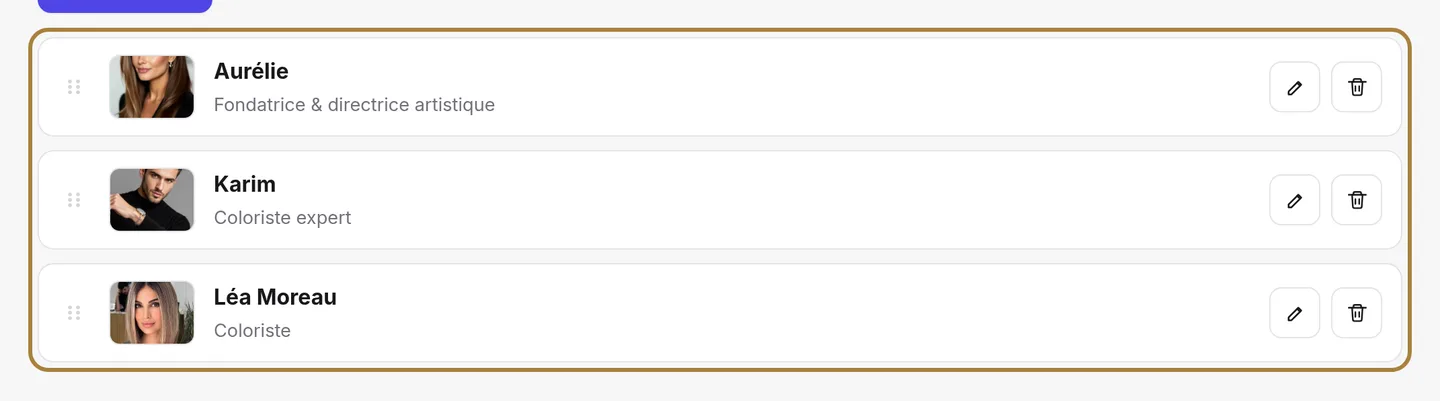
Drag a card to change the display order; the eye hides them from the site without deleting the person — they stay in the calendar.
The section's texts
Eyebrow, title and introduction for the section on your site, then Save.
Frequently asked questions
What happens when I add a person?
They appear on the site and become bookable in the calendar at the same time. Their hours are then set in Bookings › Team schedule.
How do I remove someone from the site without deleting them?
Click the eye on their card: the person disappears from the site but stays in the calendar, ready to come back.
Where do I enter the services a person performs?
On their full page, described in Adding a team member — assigned services and software access are set there.
How do I change the team's display order?
Drag a card higher or lower in the list: the site's order follows immediately.
Go further
A page for each person: the name shown everywhere, the trade written for clients, the services they're allowed to perform. Then their hours and their access to the software.
Calendar and appointmentsThe team's schedule: hours and time offWho works when: each stylist's hours, up to two slots a day, and their time off. The calendar and online booking adapt on their own.
My website"Your site's sections: show, hide, order"Your homepage is made of stacked sections. Choose which ones show and in what order — your site's remote control — and the mechanics common to every "My site" screen.
Need a hand?
Write to us from your studio, under “Help & support”: we answer quickly, with real people.