Writing articles for your site
Your tips and news: what brings Google back to your site. The title written like a client's question, the summary, the category, draft or live, comments.
In this article
Your tips and news. This is what brings Google back to your site — and what positions you as a professional rather than a price list. One article a month is already enough to keep your site alive.

One article, one line
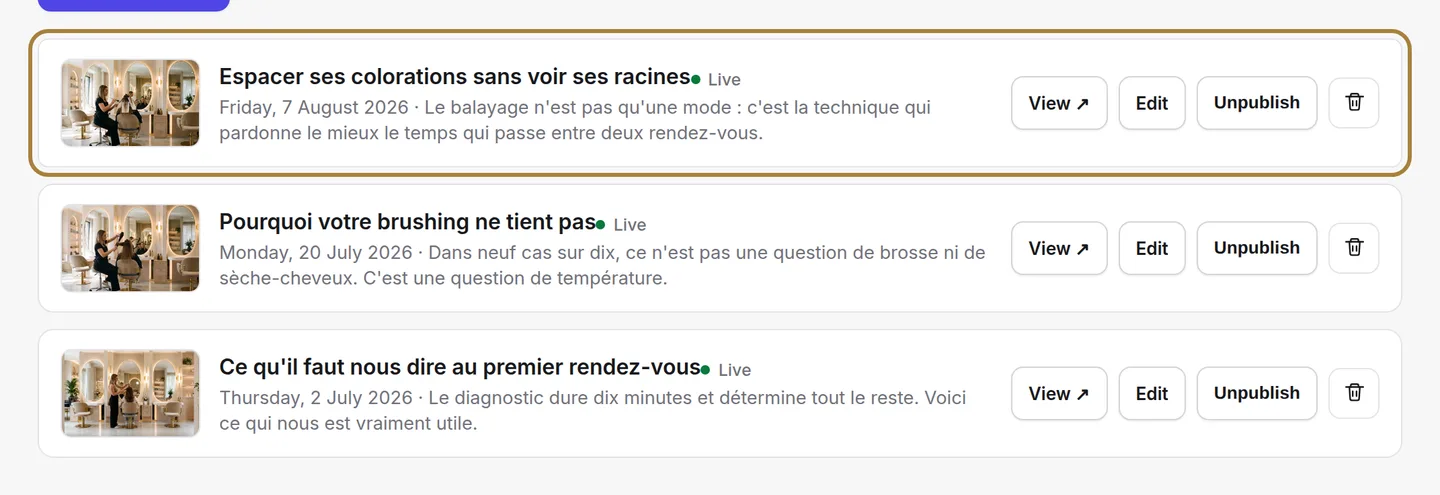
The thumbnail, the title, the date and the status badge: "Live" on the site, or "Draft" visible only to you. View opens it on your site, Edit reopens it in the editor, Unpublish sends it back to draft, Delete always asks for confirmation.
Writing an article
- The title. This is the sentence Google shows and that people click on. Write it like a client's question: "How do you look after a balayage in summer?" draws people in, "Salon news" draws no one.
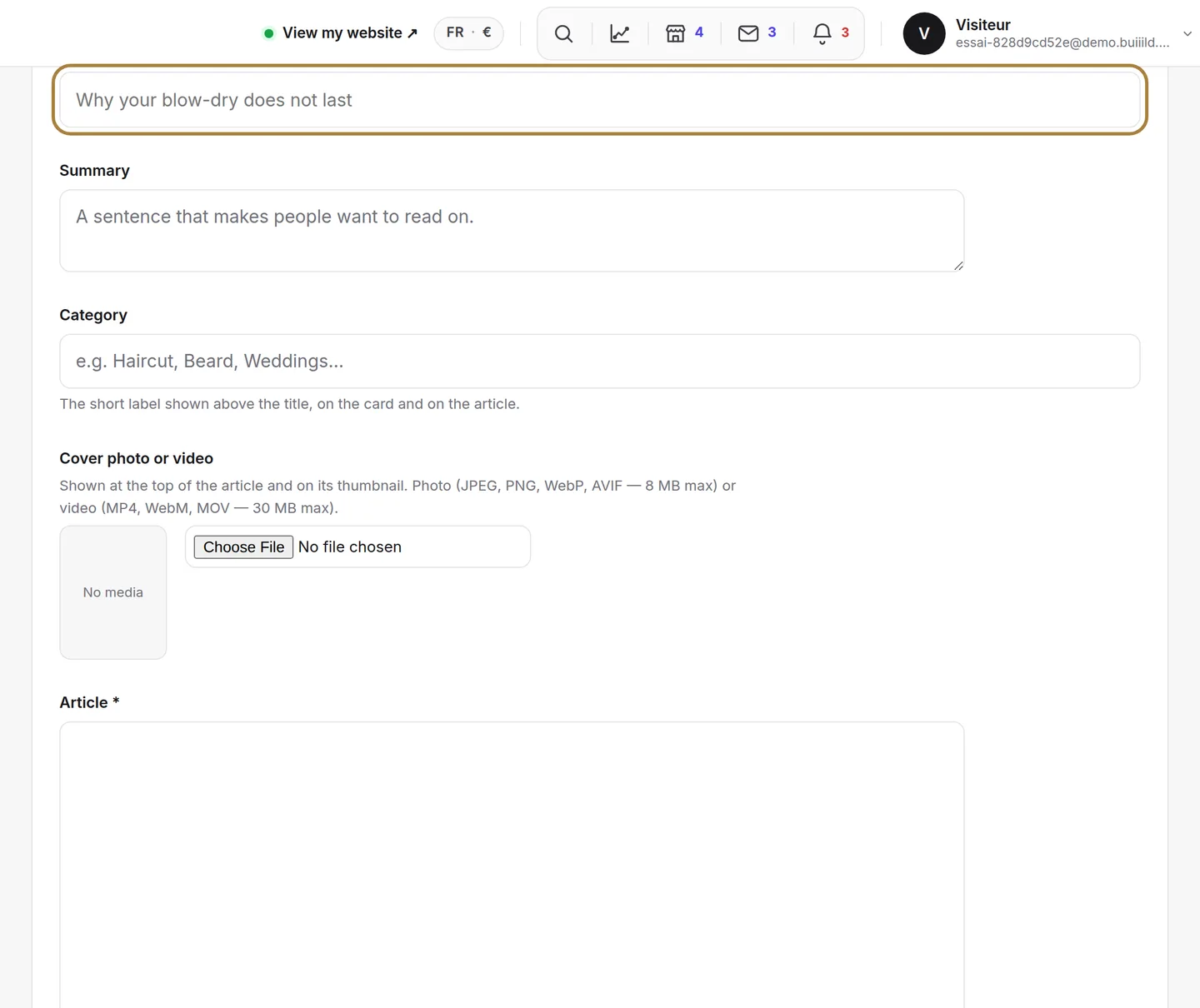
"The title: the sentence Google shows." - The summary. These two lines show under the title in the article list and in search results. Left blank, the start of the text is used instead, often cut off mid-sentence.
- The category. It files the article and lets a reader find others on the same topic. Three well-filled categories beat twelve with one article each.
- The text. Write as you'd talk at the basin: a concrete tip, what you do at the salon, what to avoid. Five useful lines beat a page copied from elsewhere — text copied from another site hurts your search ranking.
- Draft, or live. The draft stays with you; publishing puts the article live straight away, visible to everyone. Reread it first.

Draft, or live.
Comments
Your readers can comment on your articles — but nothing shows without your approval. Approve or delete each comment from the Articles screen.
Frequently asked questions
Is a draft visible to my visitors?
No, it stays visible only to you, until you publish it.
How do I take down a published article without deleting it?
Click Unpublish: the article goes back to draft, nothing is lost.
What happens if I leave the summary blank?
The start of the article's text is used instead, sometimes cut off mid-sentence. It's better to write it yourself.
Do my readers' comments show up straight away?
No, never without your approval. You approve or delete each comment from the Articles screen.
Go further
The title and description that appear in search results, and the visibility report that says what your site is missing.
My website"Your site's sections: show, hide, order"Your homepage is made of stacked sections. Choose which ones show and in what order — your site's remote control — and the mechanics common to every "My site" screen.
Marketing and reviewsVisuals to share on your social networksReady-to-publish images, in your salon's colours: choose a template, check the preview, download.
Need a hand?
Write to us from your studio, under “Help & support”: we answer quickly, with real people.